Minecraft, even after all these years, remains a leading sandbox game. Its endless journeys, procedurally generated worlds, and robust multiplayer support offer boundless creative possibilities. Let's explore the initial steps to begin your adventure.
Table of Contents
- Creating a Minecraft Account
- How to Start Your Journey
- PC (Windows, macOS, Linux)
- Xbox and PlayStation
- Mobile Devices (iOS, Android)
- How to Exit Minecraft
Creating a Minecraft Account
You'll need a Microsoft account to play. Go to the official Minecraft website using your web browser. In the upper right corner, click "Sign In." In the authorization window, select the option to create a new account.
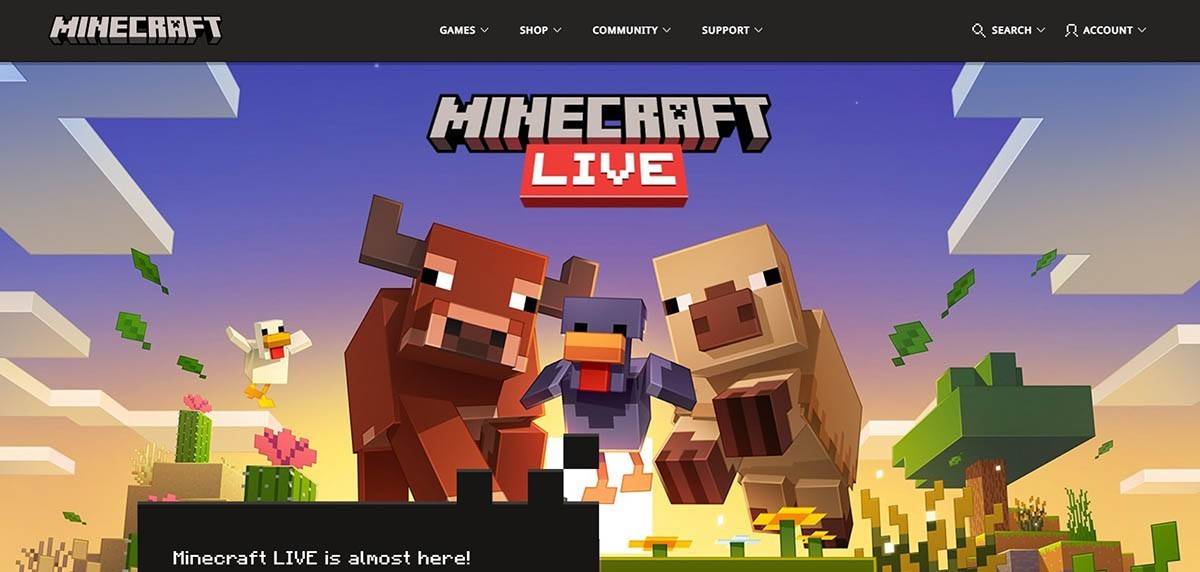 Image: minecraft.net
Enter your email address, create a strong password, and choose a unique username. The system will suggest alternatives if your chosen username is already taken.
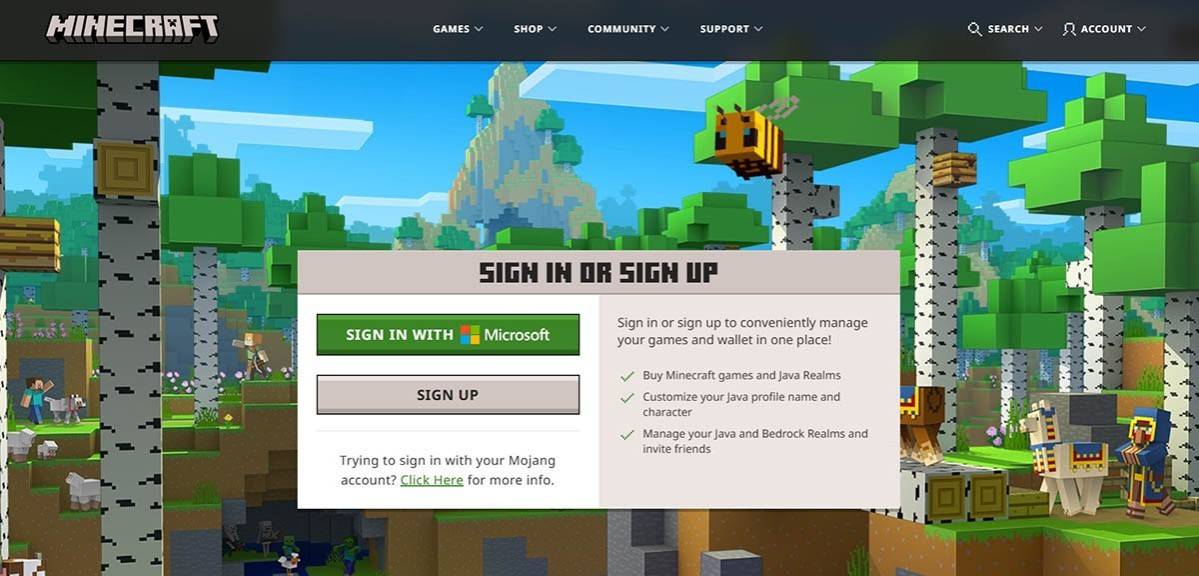 Image: minecraft.net
Verify your email address using the code sent to your inbox. Check your spam folder if you don't receive it promptly. Once verified, your profile is created and linked to your Microsoft account. You can then purchase the game (if you haven't already) from the website's store, following the on-screen instructions.
How to Start Your Journey
PC (Windows, macOS, Linux)
Minecraft on PC offers two main editions: Java Edition and Bedrock Edition. Java Edition, compatible with Windows, macOS, and Linux, is downloaded from the official Minecraft website. After installing the launcher, log in with your Microsoft or Mojang account and select your game version.
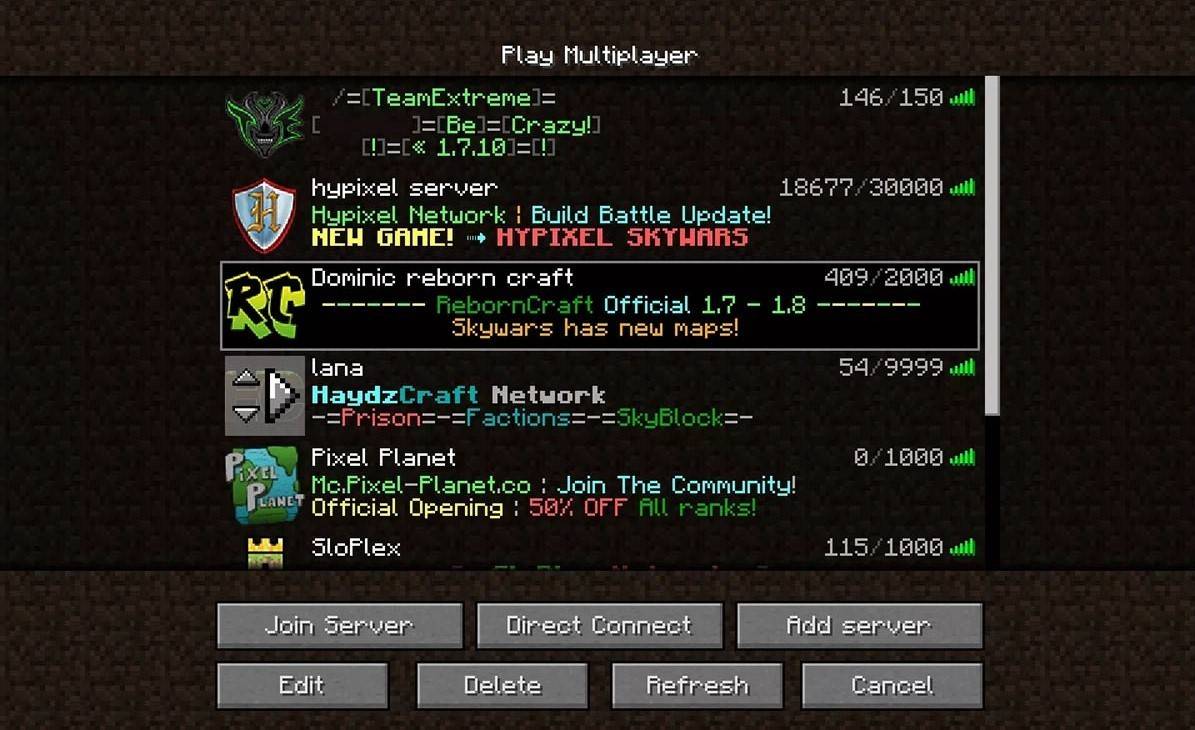 Image: aiophotoz.com
On first launch, an authorization window will appear. Log in using your Microsoft account credentials. For solo play, click "Create New World." Choose your game mode: "Survival" for the classic experience or "Creative" for unlimited resources.
For multiplayer, go to the "Play" section, then the "Servers" tab. Select a public server or enter a private server's IP address (if invited). To play with friends in the same world, create or load a world, then enable multiplayer in the settings.
Xbox and PlayStation
 Image: youtube.com
On Xbox consoles (Xbox 360, Xbox One, Xbox Series X/S), you'll log in through the Microsoft Store after downloading and installing the game. Logging in with your Microsoft account syncs achievements and purchases.
Minecraft is also available on PlayStation 3, PlayStation 4, and PlayStation 5, purchasable and downloadable from the PlayStation Store. Login uses a Microsoft account, enabling cross-platform play.
Mobile Devices (iOS, Android)
Purchase Minecraft through the App Store (iOS) or Google Play (Android). After installation, log in using your Microsoft account. The mobile version supports cross-platform play.
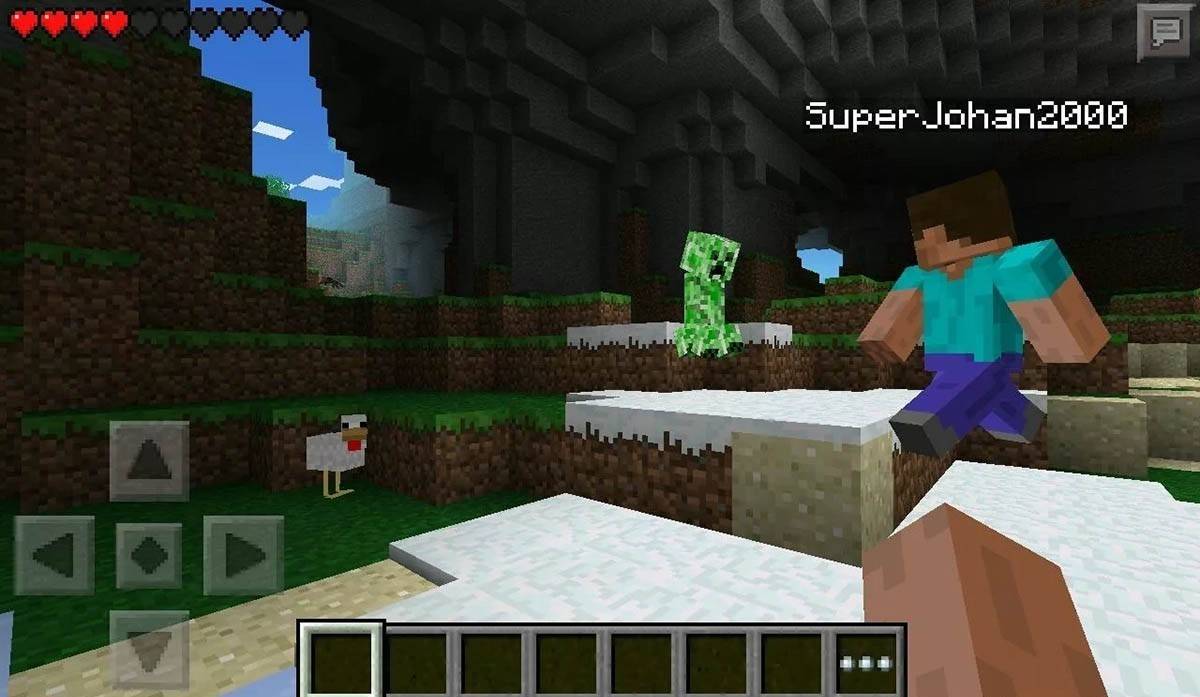 Image: storage.googleapis.com
Note: Bedrock Edition supports cross-platform play across all mentioned devices. Java Edition is PC-only and doesn't support cross-platform play.
How to Exit Minecraft
Use the in-game menu to exit. On PC, press Esc to open the menu and select "Save and Quit." On consoles, use the pause menu and select "Save and Quit," then exit through the console menu. On mobile, use the "Save and Quit" button in the game menu, then close the app via your device's system menu.
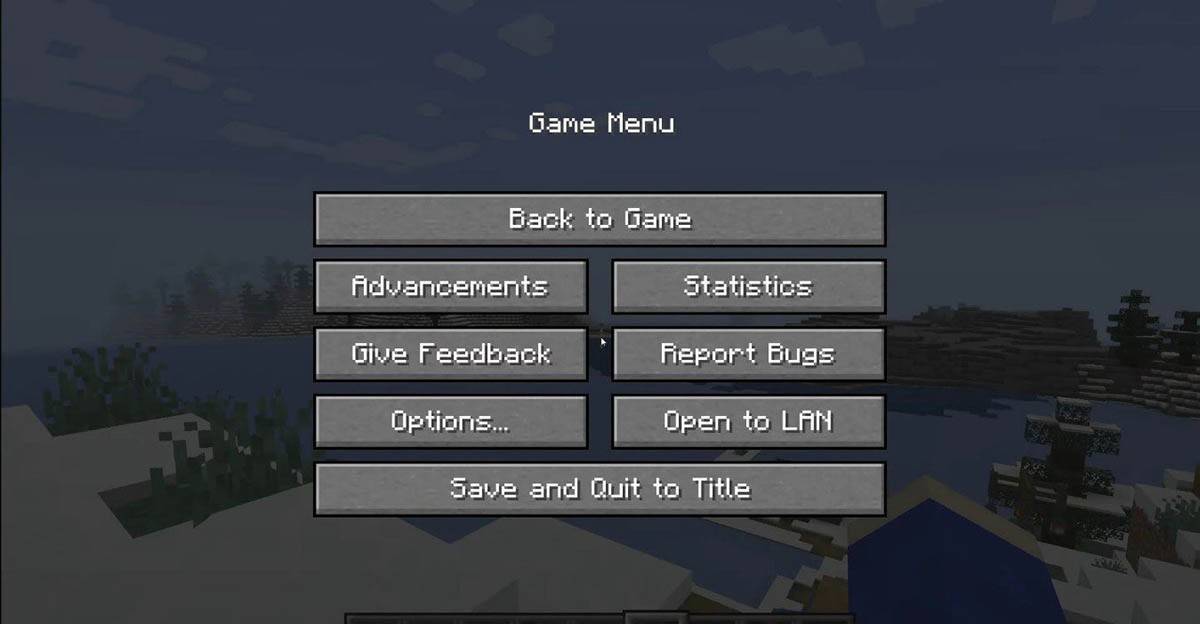 Image: tlauncher.org
Enjoy your Minecraft adventures! Explore solo or team up with friends across various devices in this blocky world.