
The ROG Ally, a compelling Steam Deck alternative, exploded onto the gaming scene in 2023. Its Windows OS grants access to an even wider game library. The 2024 ROG Ally X upgrade not only boosted internal specs but also enhanced comfort and cooling with a redesigned chassis.
While its portability is a major draw, enjoying games on a larger screen is a welcome option. Fortunately, both ROG Ally models easily connect to external displays, bringing the big-screen experience to your favorite titles. Below, we'll detail how to connect your ROG Ally to a TV or monitor, providing step-by-step instructions and recommendations.
Connecting with an Adapter
Connecting your ROG Ally to a TV or monitor is straightforward using an adapter. From compact dongles to direct cables and the official ROG Gaming Charger Dock, several options cater to different preferences.
What You'll Need
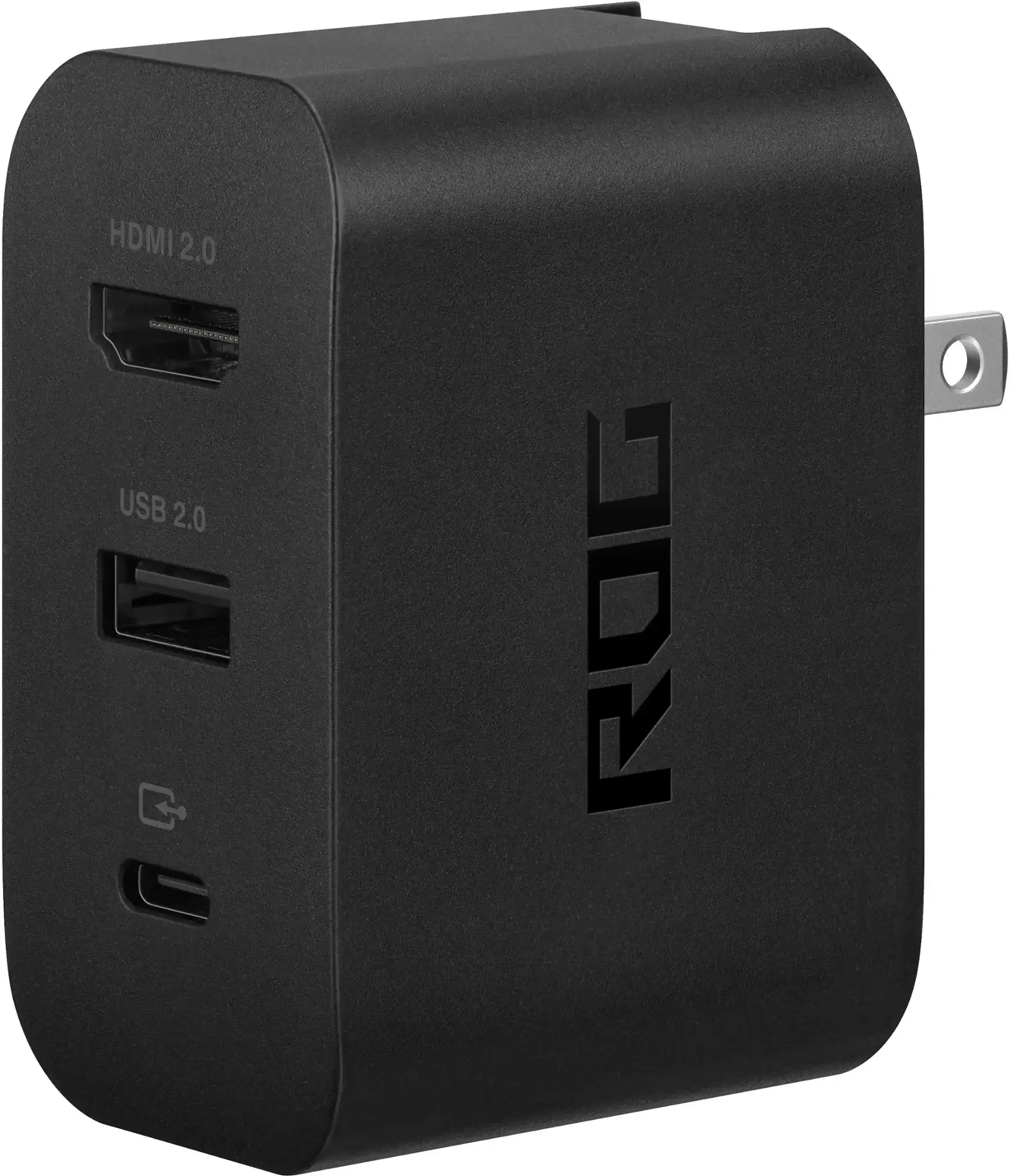
ASUS ROG 65W Charger Dock
The ASUS ROG Gaming Charger Dock offers a space-saving, all-in-one solution. It charges your Ally while providing HDMI 2.0 output, plus USB Type-A and USB Type-C ports for added peripherals. Simply connect via USB-C and HDMI cables.
Alternatively, a third-party USB-C to HDMI adapter connects directly to your Ally's USB-C port. An HDMI cable links the adapter to your TV or monitor. For a single-cable solution, a USB-C to HDMI cable eliminates extra steps. Some adapters include a passthrough USB-C port for charging; if so, you'll need an additional USB-C cable and power adapter.
Step-by-Step Instructions
- Plug a USB-C to HDMI adapter (or cable) into your ROG Ally's top USB-C port. If using the ROG Gaming Charger Dock, connect a USB-C cable between the Ally and the dock's USB-C port.
- Connect an HDMI cable from the adapter (or dock) to your TV or monitor's HDMI port. For direct USB-C to HDMI cables, connect directly to the monitor.
- (Optional) If your adapter has a passthrough USB-C port, connect your Ally's power adapter for charging.
- Power on your ROG Ally; it should automatically detect and output the video signal.
- Switch your TV or monitor's input to the correct HDMI source.
Connecting with a Docking Station
For a more console-like setup, consider a docking station. While there's no official ROG Ally dock (beyond the charging dock), numerous third-party options are available. These offer a stand for your Ally and typically include charging capabilities.
What You'll Need
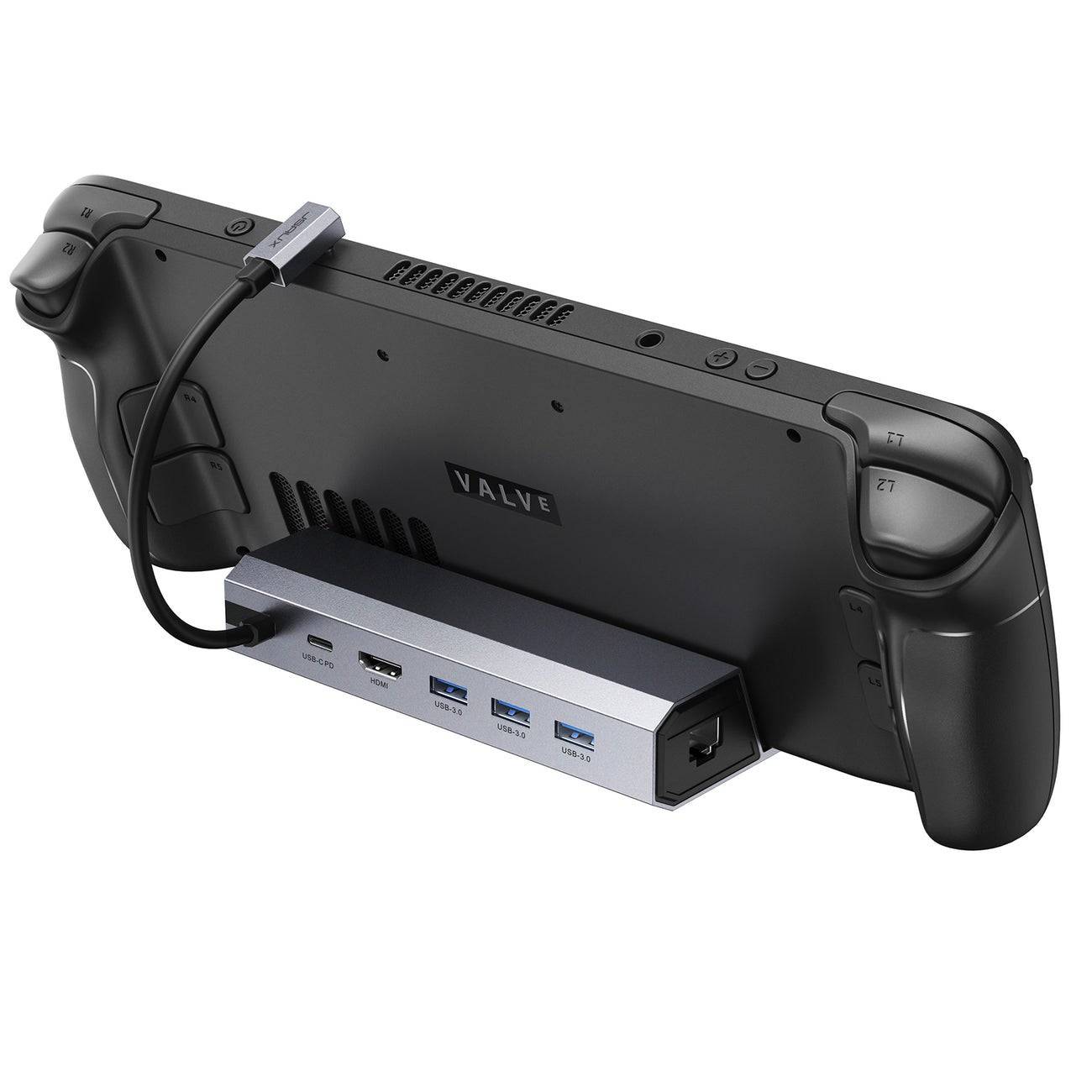
JSAUX Docking Station HB0603
This docking station offers a lightweight, compact design with 100W power delivery for fast charging and multiple ports. It also serves as a stand for your ROG Ally.
Basic docks usually include HDMI and USB-C passthrough charging. More advanced docks offer extra USB ports for peripherals, Ethernet, SD card slots, and even DisplayPort for multi-monitor setups. Many Steam Deck docks are also compatible with the ROG Ally.
Step-by-Step Instructions
- Place your ROG Ally in the dock.
- Connect the USB-C power cord to your Ally's USB-C port.
- Connect your Ally's power adapter to the dock's USB-C charging port.
- Connect an HDMI cable from the dock to your TV or monitor.
- Power on your ROG Ally; it should automatically detect and output the video signal.
- Switch your TV or monitor's input to the correct HDMI source.
You'll Also Need a Controller
While keyboard and mouse support exists, a wireless controller provides a more comfortable big-screen gaming experience. The ROG Ally supports any Bluetooth-enabled controller.
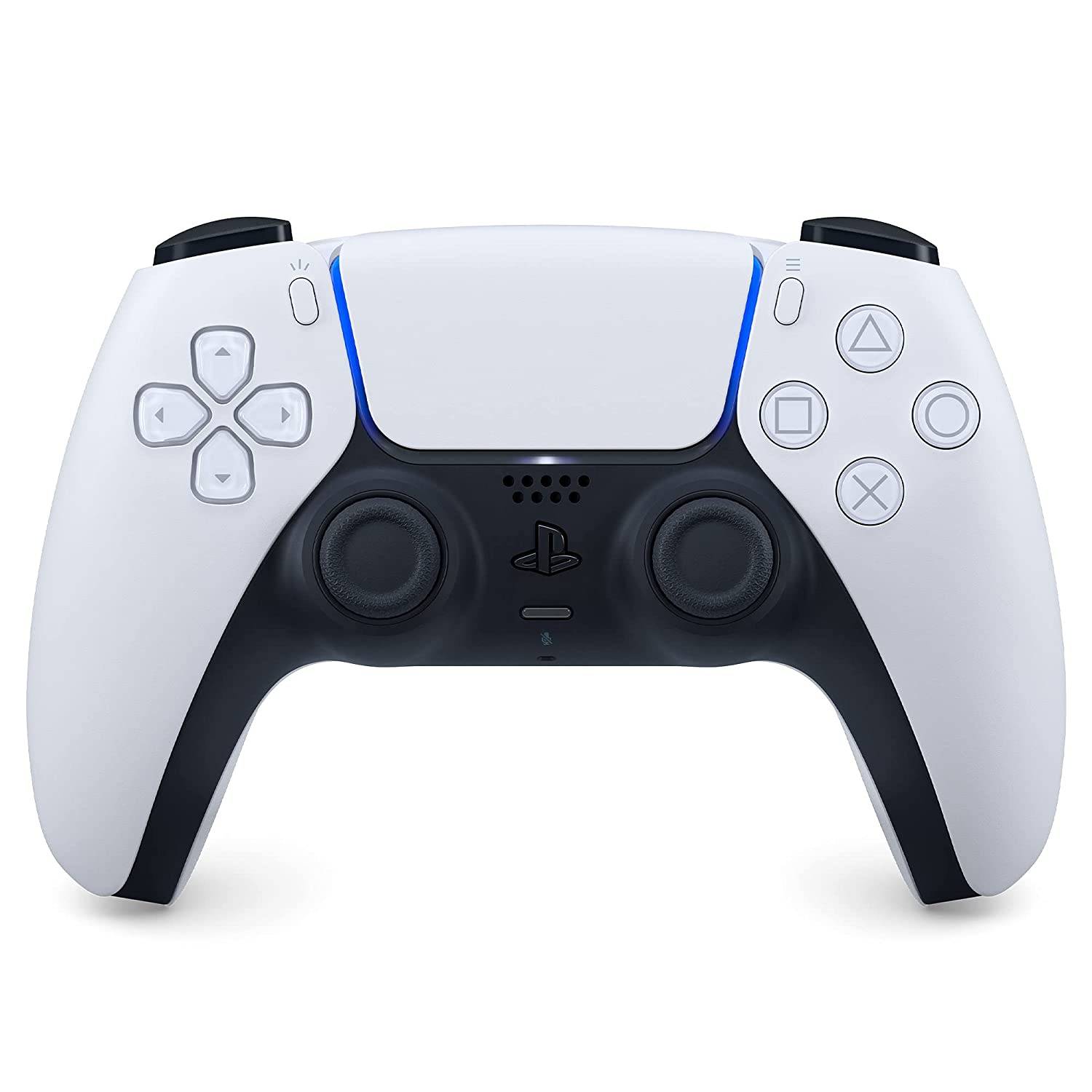
Sony DualSense
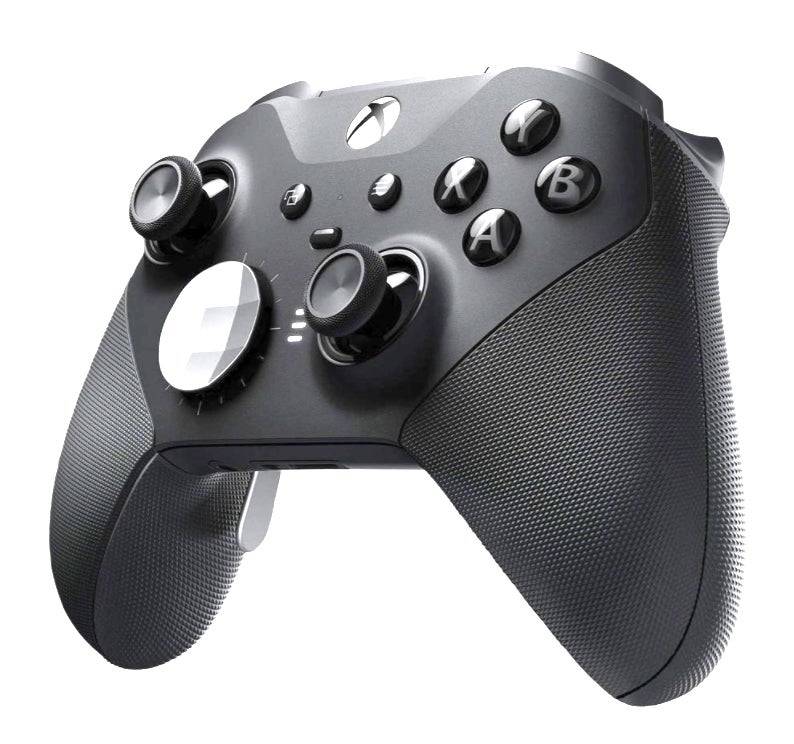
Xbox Elite Series 2 Controller
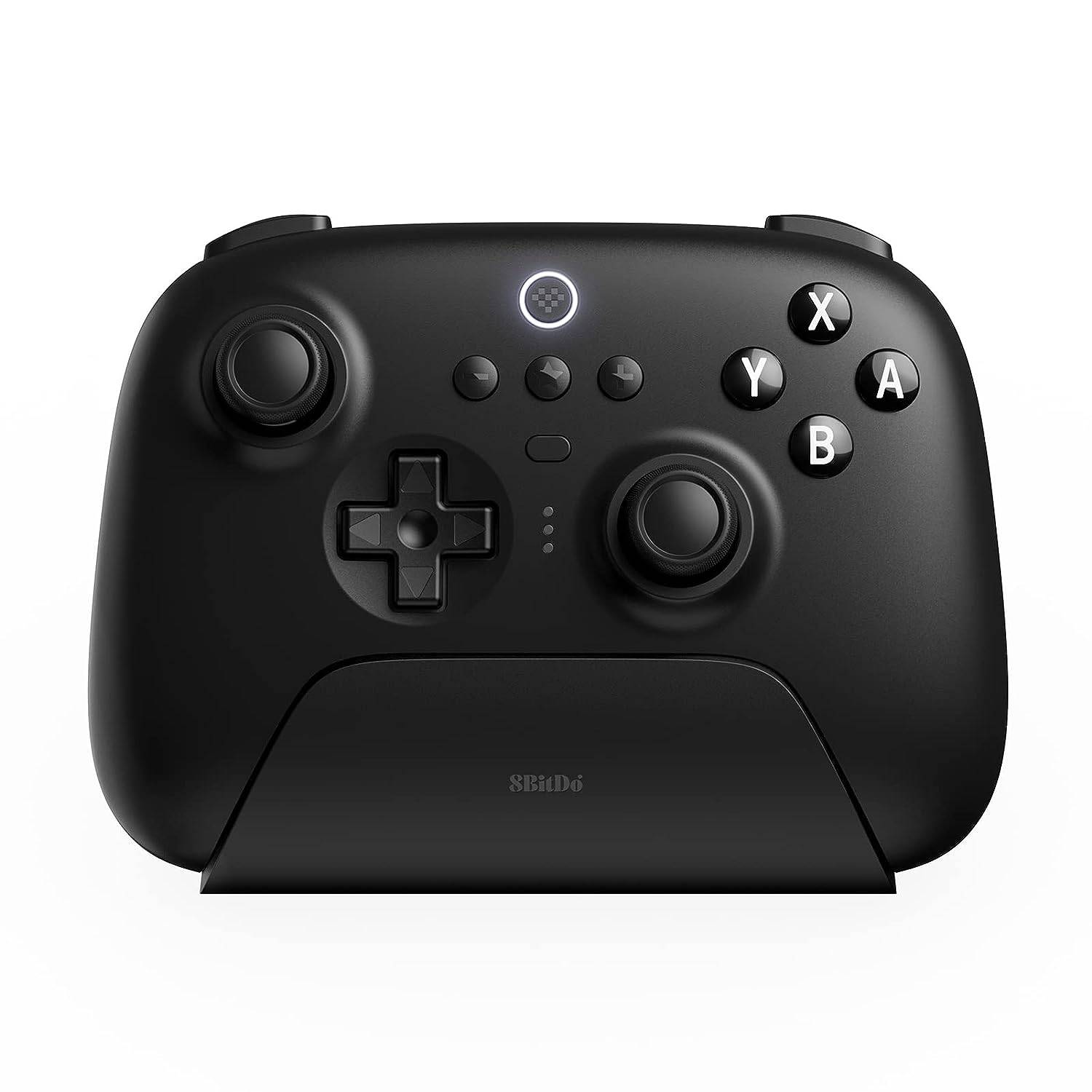
8BitDo Ultimate Controller
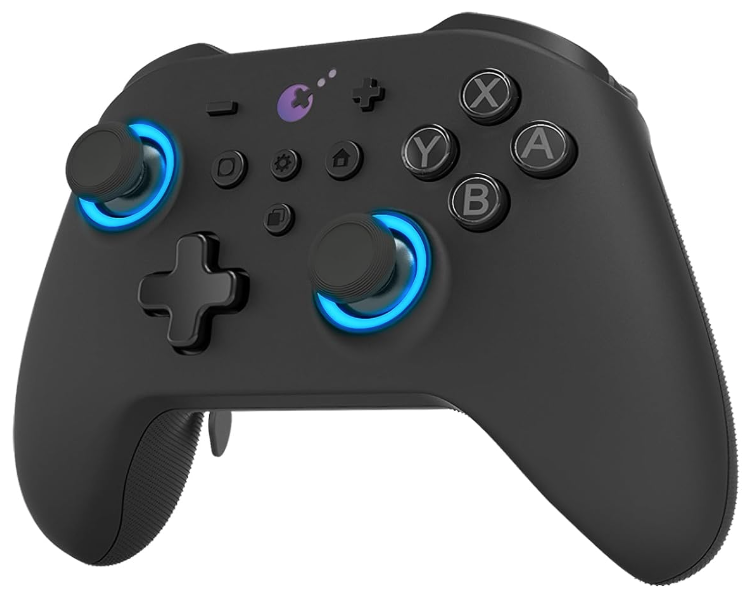
GuliKit KingKong 3 Max Controller
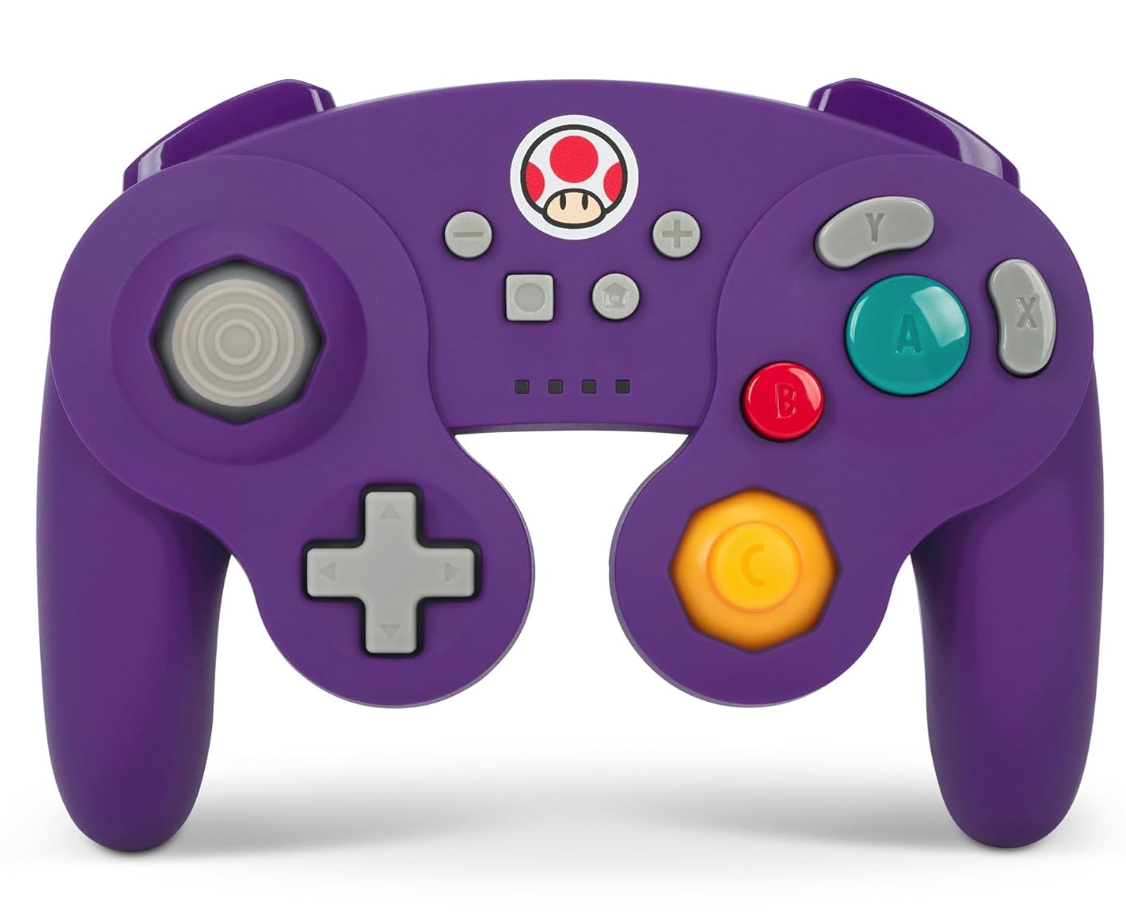
PowerA Wireless GameCube Style Controller
Consider options like the DualSense, Xbox Wireless Controller, or Nintendo Switch Pro Controller, along with various third-party controllers. 2.4GHz wireless controllers often offer lower latency and better range than Bluetooth. Wired USB controllers are also a viable option for close proximity setups.