Enhance Your Call of Duty: Black Ops 6 Visuals: A Guide to Sharper Graphics
Many Call of Duty players experience frustrating graininess and blurriness in Black Ops 6, impacting gameplay and immersion. This guide provides solutions to achieve optimal visual clarity.
Why the Grain and Blur?
If your hardware settings are already optimized (e.g., highest resolution output), the issue likely stems from in-game settings. Updates can sometimes reset options to defaults, causing these problems. The key settings reside within the Graphics menu's Display, Quality, and View tabs.
Eliminating Blur: Disabling Motion Blur and Depth of Field
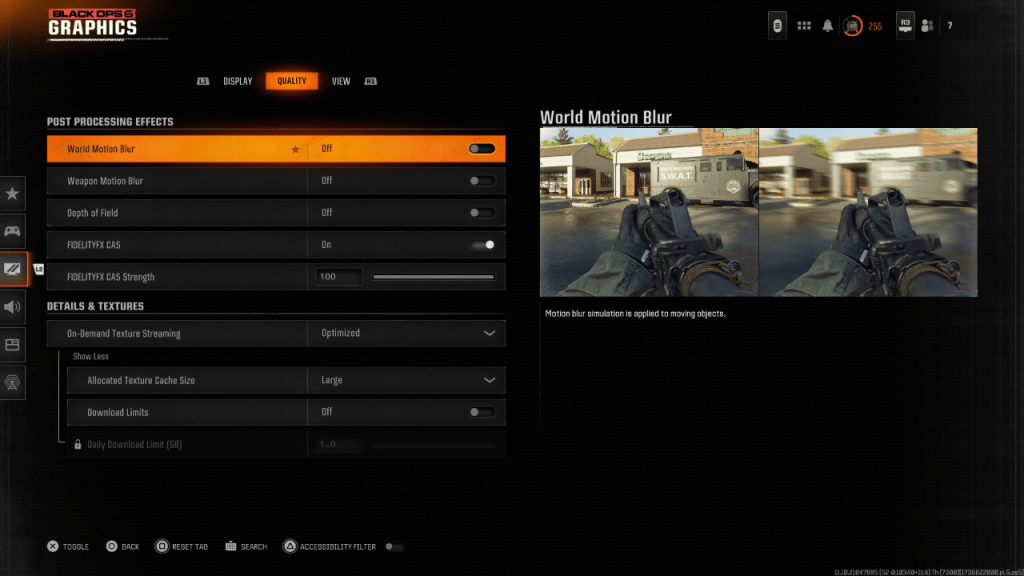
Motion Blur and Depth of Field, while enhancing cinematic feel, introduce blur that hinders target acquisition in fast-paced games like Black Ops 6. To disable them:
- Navigate to the Graphics settings, then the Quality tab.
- Locate "Post Processing Effects."
- Set "World Motion Blur," "Weapon Motion Blur," and "Depth of Field" to "Off."
Improving Clarity: Gamma, Brightness, and FidelityFX CAS
Incorrect gamma and brightness calibration can also affect image quality.
- In the Display tab, adjust the Gamma/Brightness slider until the Call of Duty logo is barely visible (a value of 50 is often a good starting point).
- In the Quality tab, ensure "FIDELITYFX CAS" is "On." This activates AMD FidelityFX Contrast Adaptive Sharpening. Increase the "Strength" slider to 100 for maximum sharpness if needed.
If problems persist, On-Demand Texture Streaming might be the culprit.
Optimizing Textures and Detail:
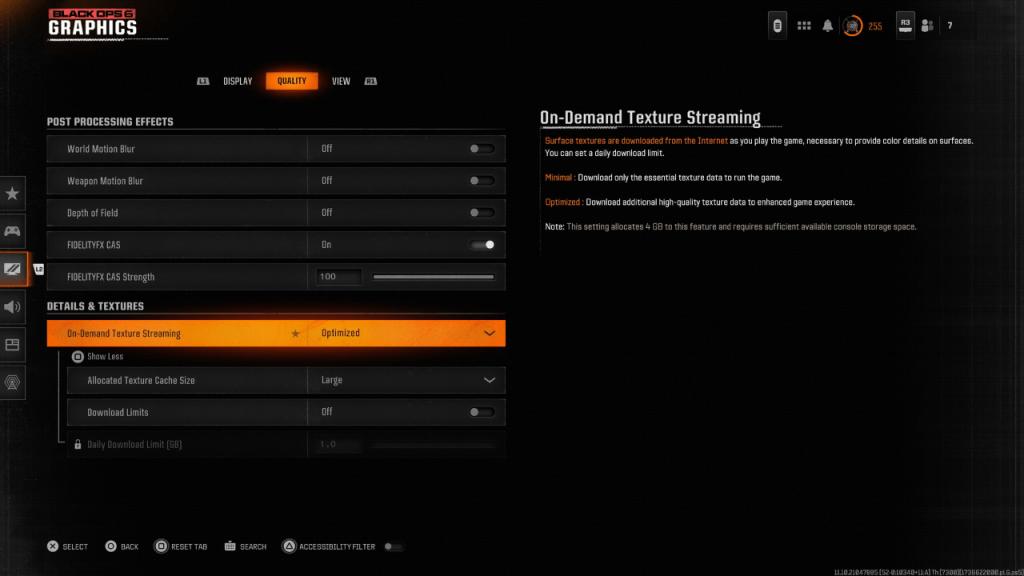
On-Demand Texture Streaming, while saving storage space, can compromise image quality. To improve this:
- Go to the Details & Textures settings within the Quality tab.
- Set "On-Demand Texture Streaming" to "Optimized" to download higher-quality textures.
- Click "Show More" to access additional options.
- Set "Allocated Texture Cache Size" to "Large" (this uses more storage but allows more textures to be loaded simultaneously).
- If your internet plan allows, disable "Download Limits" for unrestricted high-resolution texture downloads.
By adjusting these settings, you can significantly improve the visual fidelity of Call of Duty: Black Ops 6, resulting in a smoother, clearer, and more enjoyable gaming experience.