Quick Links
For anyone seriously tackling Path of Exile 2's endgame, a tailored loot filter is essential. Loot filters not only declutter your screen and make mapping more manageable, but they also enhance your gameplay by highlighting items that are worth your attention, freeing you from the hassle of mentally sifting through irrelevant loot.
FilterBlade, renowned for its effectiveness in Path of Exile 1, now supports PoE 2 with its latest update. Here's how to get started with it.
How to Set Up FilterBlade Loot Filters in Path of Exile 2
 - Head to the FilterBlade website.
- Choose PoE 2 from the options provided.
- The default NeverSink loot filter will be selected automatically.
- Adjust the Strictness level using the slider beneath the filter selection (more on this below).
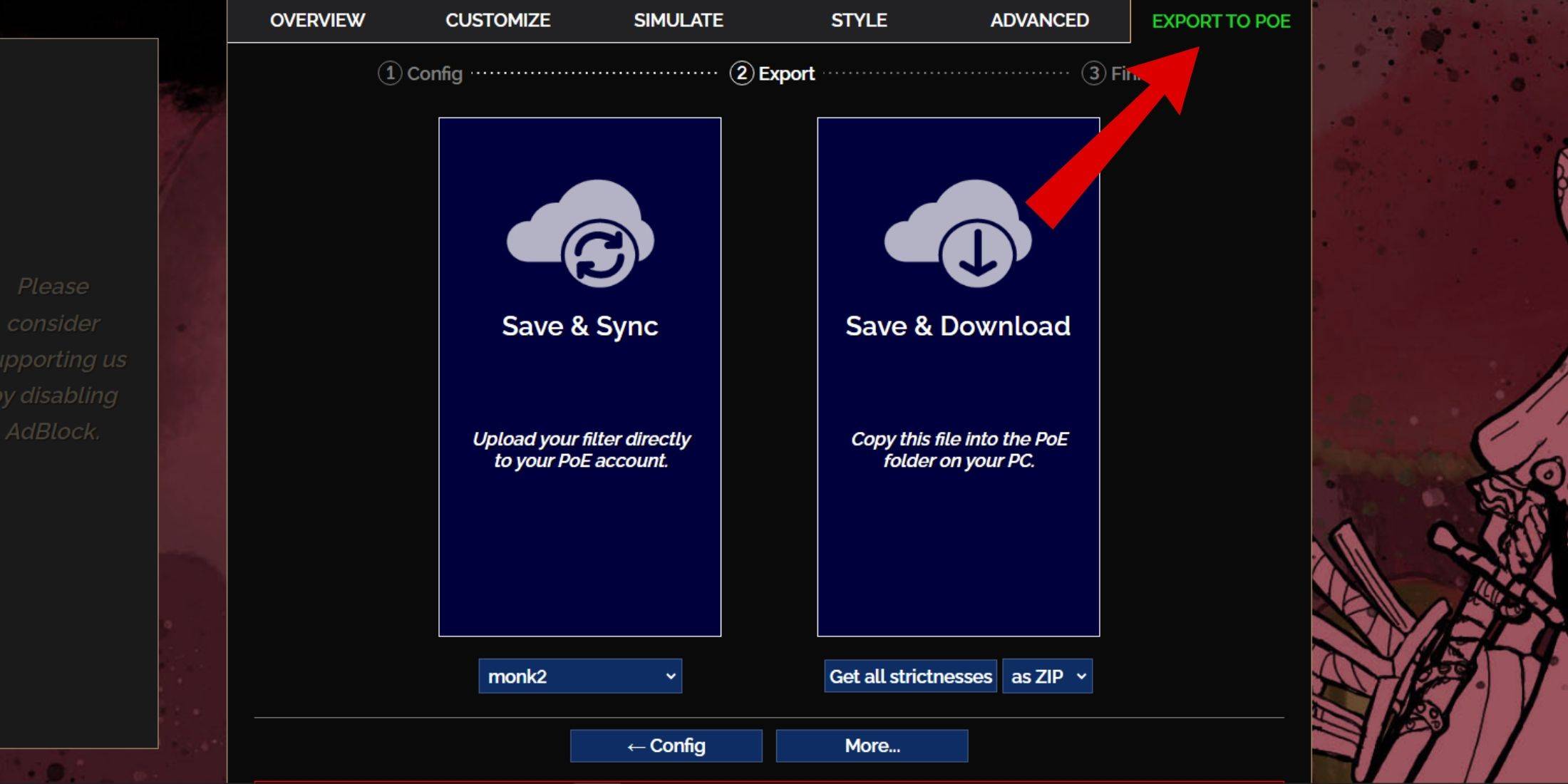
- Navigate to the 'Export to PoE' tab in the top right corner.
- Enter a name for your filter—any name works.
- Click 'Sync' or 'Download' at the bottom right.
- 'Save & Sync' will instantly apply the FilterBlade loot filter to your PoE 2 account, ensuring that any updates from the author are automatically reflected in your game.
- 'Save & Download' allows you to save the file on your PC, enabling you to compare different strictness levels without multiple syncs, which is particularly useful at the start of a new campaign.
- Launch PoE 2 and go to Options > Game.
- If you opted for Sync, select the newly added FilterBlade from the Item Filter dropdown.
- If you chose Download, click the folder icon next to the dropdown and navigate to your downloaded filter.
And there you have it! Your FilterBlade loot filter is now active in your game. Which Loot Filter Strictness Should You Choose?
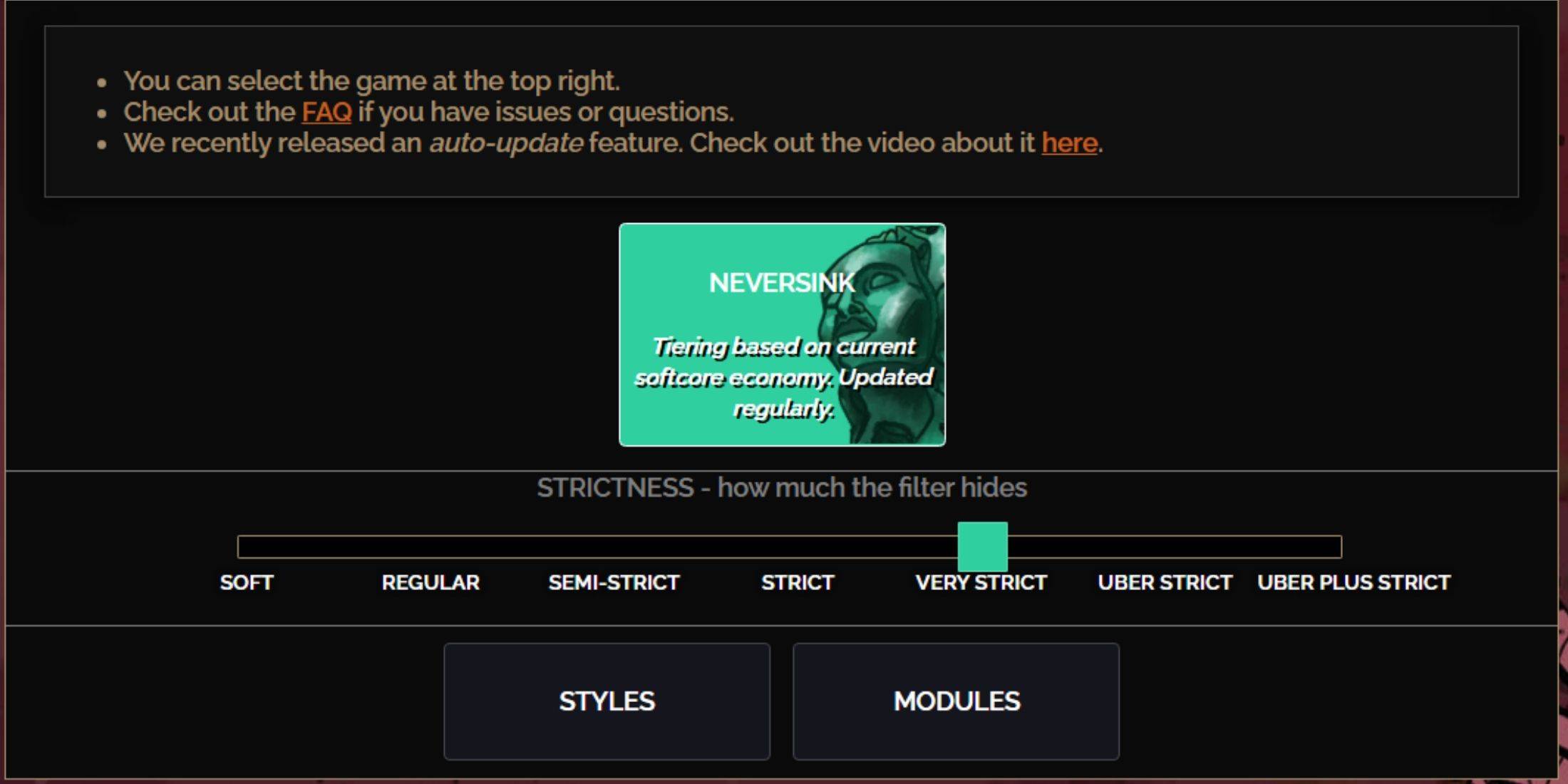 Choosing the right strictness level for the NeverSink FilterBlade preset is crucial, as it determines what items you'll see during gameplay. You can always tweak exceptions later, but starting with an appropriate level helps avoid issues.
| Strictness | Effect | Best For |
|---|---|---|
| Soft | Highlights valuable items without hiding anything. | Act 1-2 |
| Regular | Hides only items with no crafting potential or sale value. | Act 3 |
| Semi-Strict | Conceals items with low potential or limited value. | Act 4-6 |
| Strict | Hides most items without high turnover. | Early Mapping phase (Waystone Tier 1-6) |
| Very Strict | Hides low-value rares and crafting bases, plus Waystone Tier 1-6. | Mid to late mapping phase (Waystone Tier 7+) |
| Uber Strict | Hides almost all non-tiered rares and crafting bases, focuses on complete currency. Hides Waystones Tier 1-13. | Late mapping phase (Waystone Tier 14+) |
| Uber Plus Strict | Hides nearly everything except valuable currencies and high-return rares and uniques. Hides Waystones Tiers 1-14. | Ultra endgame mapping phase (Waystone Tier 15-18) |
For players embarking on a second or third campaign run, starting with the Semi-Strict level is advisable. Soft and Regular levels are ideal for fresh league starts where every item is crucial for character progression, similar to Solo Self-Found (SSF) runs.
Items hidden by your loot filter can be viewed by pressing the highlight key (ALT on PC). Depending on your chosen strictness level, pressing ALT will reveal these items, but their names will appear much smaller, making them less distracting on the map (as shown above). This feature is particularly useful for players who use the highlight key to pick up items in PoE 2.
How to Customize FilterBlade Loot Filter in PoE 2
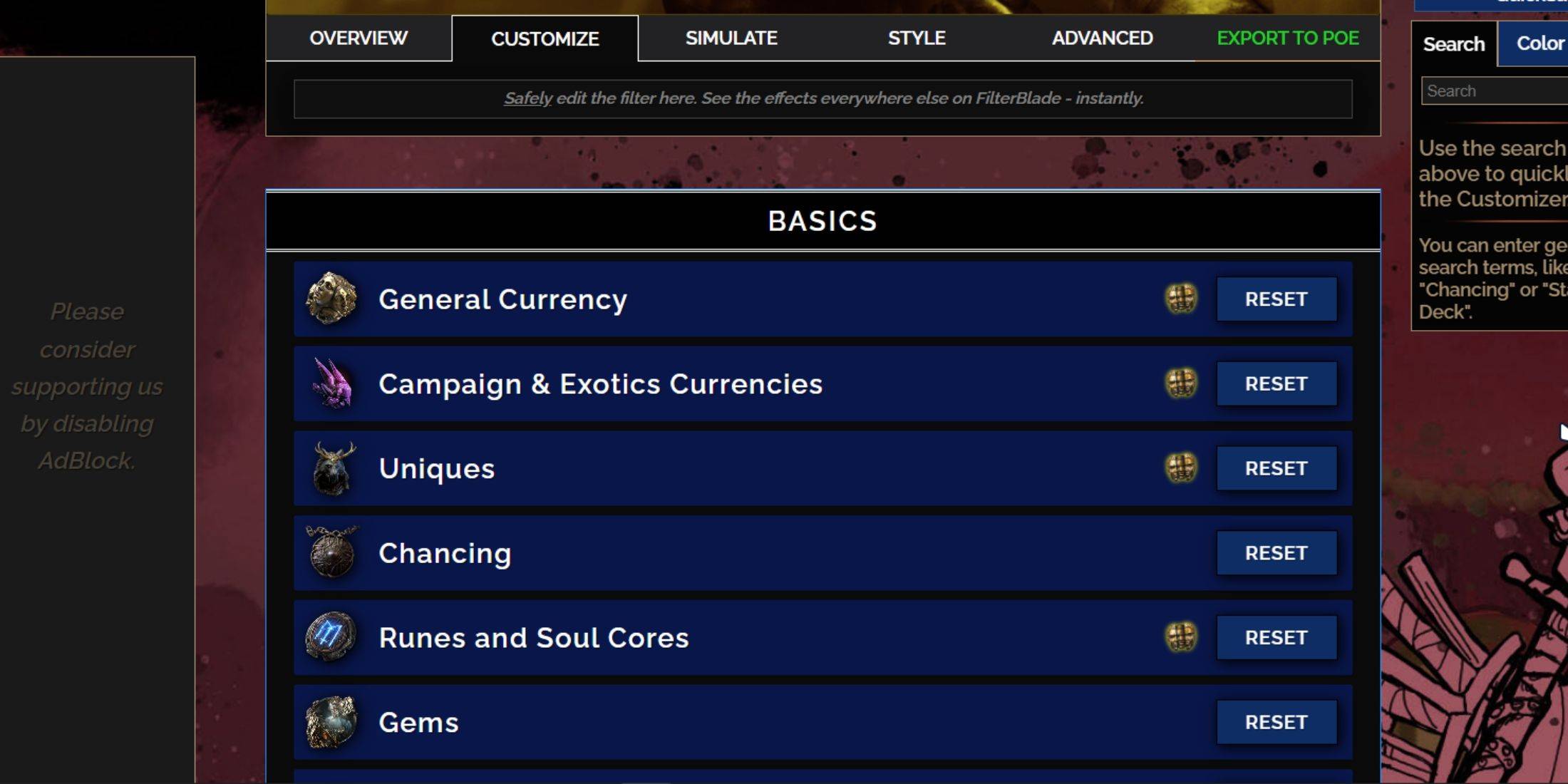 FilterBlade's strength lies in its user-friendly interface for modifying preset loot filters without delving into code. You can customize virtually any aspect of your loot filter with ease.
How to Use the Customize Tab in FilterBlade
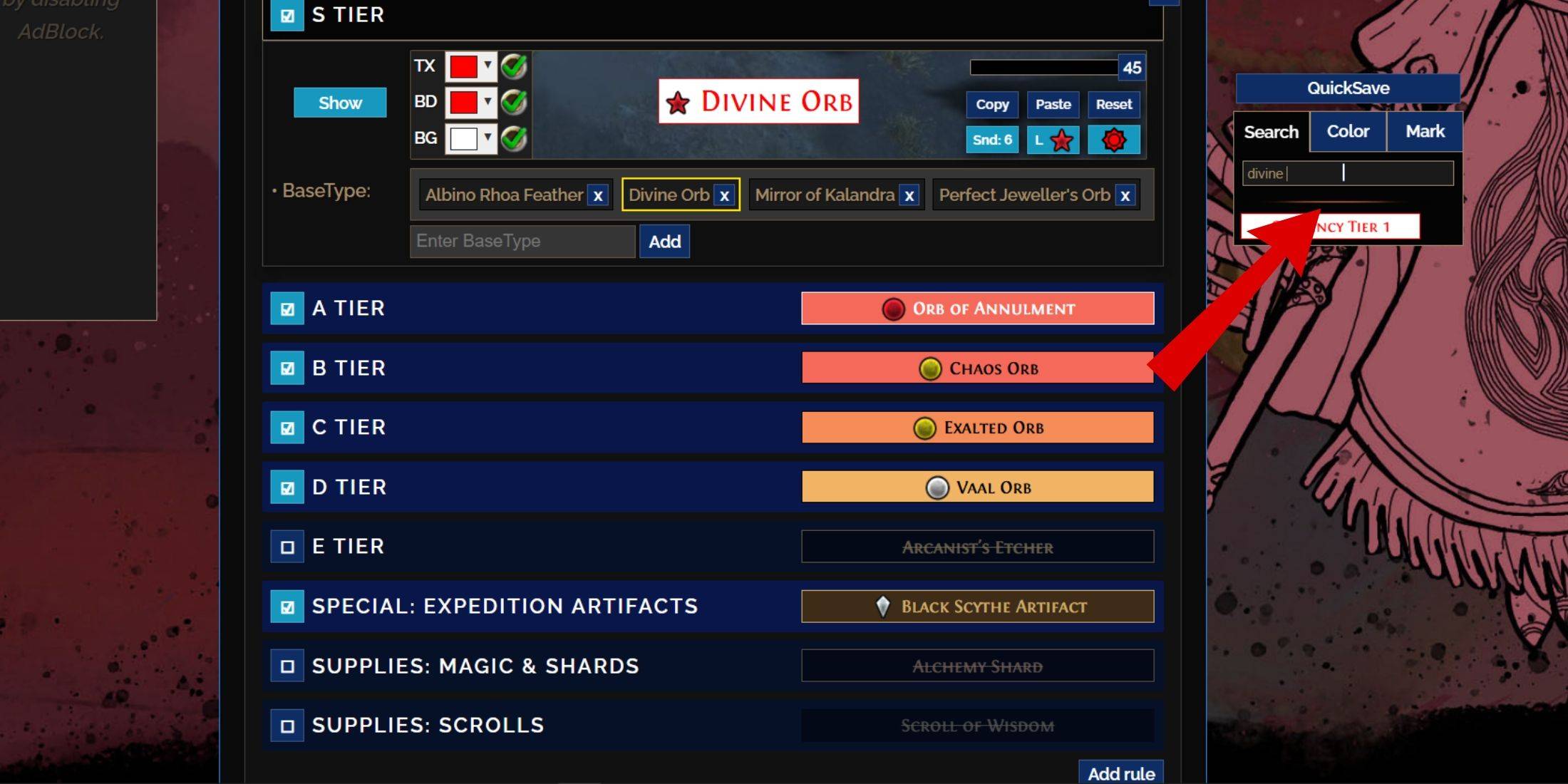 For detailed customization, go to the 'Customize' tab beside Overview. Here, every possible drop in PoE 2 is categorized into sections and subsections, allowing for extensive modifications.
For instance, if you want to alter the appearance of a  Divine Orb when it drops, simply search for 'Divine Orb' using the search bar on the right. This will lead you to the S Tier General Currency tab, where you can adjust the Divine Orb's appearance. Changes are visually represented above the settings.
To preview the in-game sound of an item drop, click the in-game showcase icon.
How to Change Colors and Sounds in FilterBlade
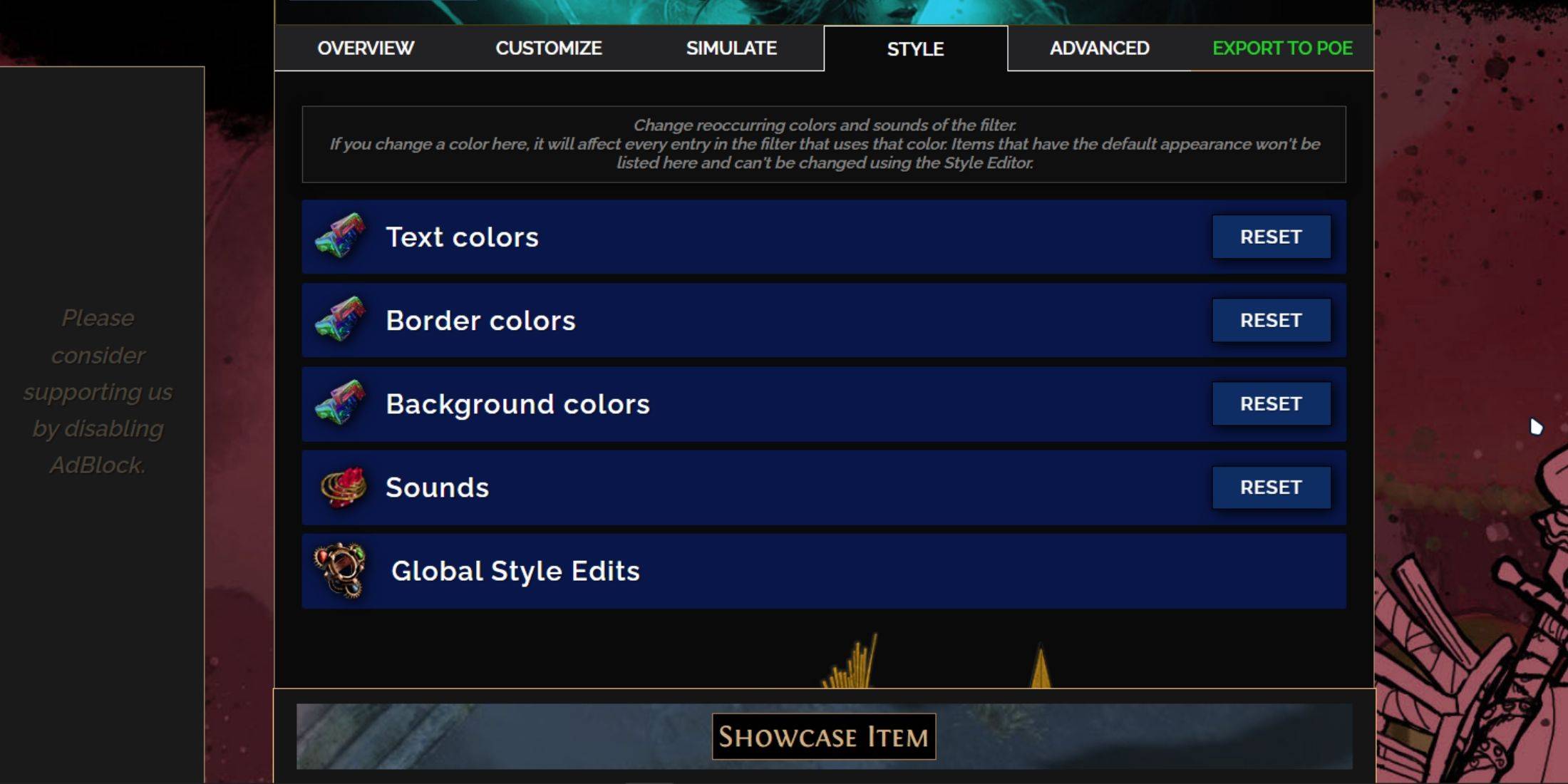 For individual or small group item modifications, use the 'Customize' tab. For broader, filter-wide changes, the 'Styles' tab is your go-to. Here, you can tweak Text, Border, and Background settings, as well as audio cues for valuable drops.
Color adjustments are straightforward, with real-time previews of how items will look in-game. For specific item changes, return to the 'Customize' tab and find the relevant entry.
Sound effects can be customized via the dropdown menu. You can add your own .mp3 files by selecting 'Custom' or choose from hundreds of community-added sounds under 'Game & Community Sounds'. Feel free to experiment; you can always revert to the original settings by selecting 'Reset'.
If you're new to loot filter customization, consider trying out public Modules, which are community-created presets that modify the loot filter in various ways, often with visual or auditory enhancements.