*Fortnite* can be an exhilarating experience, but it often comes with its share of performance issues, such as poor framerates. Fortunately, these can be mitigated by adjusting the in-game settings. Below, you'll find the optimal PC settings for *Fortnite* to enhance your gameplay experience.
Fortnite Best Display Settings
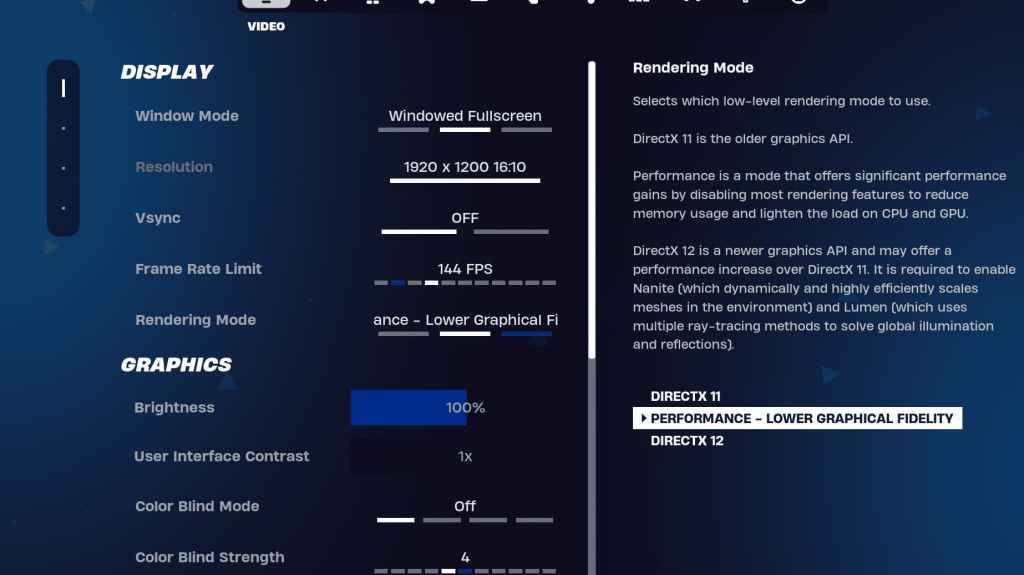
The Video section in Fortnite is divided into Display and Graphics settings, both crucial for performance optimization. Here are the recommended settings for the Display section:
| Setting | Recommended |
| Window Mode | Fullscreen for optimal performance. Use Windowed Fullscreen if you frequently switch between applications. |
| Resolution | Your monitor's native resolution (typically 1920×1080). Lower this if you have a low-end PC. |
| V-sync | Off to minimize input lag. |
| Framerate Limit | Set to your monitor's refresh rate (e.g., 144, 240). |
| Rendering Mode | Performance mode for maximum FPS. |
Rendering Modes – Which To Choose
Fortnite offers three rendering modes: Performance, DirectX 11, and DirectX 12.
- DirectX 11 is the default and more stable option, performing well without major issues.
- DirectX 12 can boost performance on newer systems and offers more graphical options for better visuals.
- Performance mode is preferred for competitive play, maximizing FPS and minimizing input lag, though it compromises on visual quality.
Related: Best Loadout for Fortnite Ballistic
Fortnite Best Graphics Settings
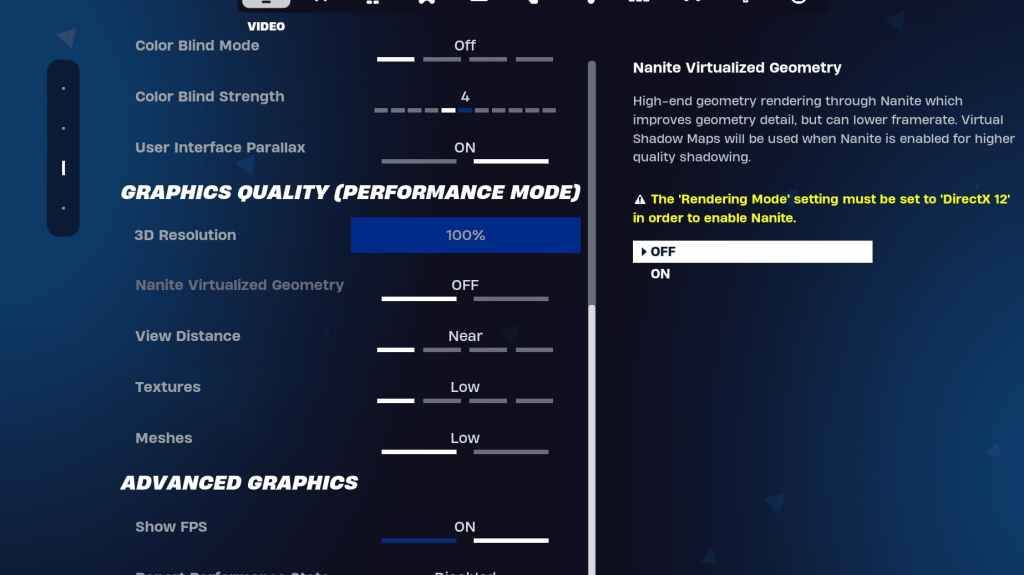
The Graphics settings are key to boosting your FPS by reducing the visual load on your PC. Here are the recommended settings:
| **Setting** | **Recommended** |
| Quality Preset | Low |
| Anti-Aliasing and Super Resolution | Anti-aliasing and Super Resolution |
| 3D Resolution | 100%. Set between 70-80% for low-end PCs. |
| Nanite Virtual Geometry (Only in DX12) | Off |
| Shadows | Off |
| Global Illumination | Off |
| Reflections | Off |
| View Distance | Epic |
| Textures | Low |
| Effects | Low |
| Post Processing | Low |
| Hardware Ray Tracing | Off |
| Nvidia Low Latency Mode (Only for Nvidia GPUs) | On+Boost |
| Show FPS | On |
Fortnite Best Game Settings
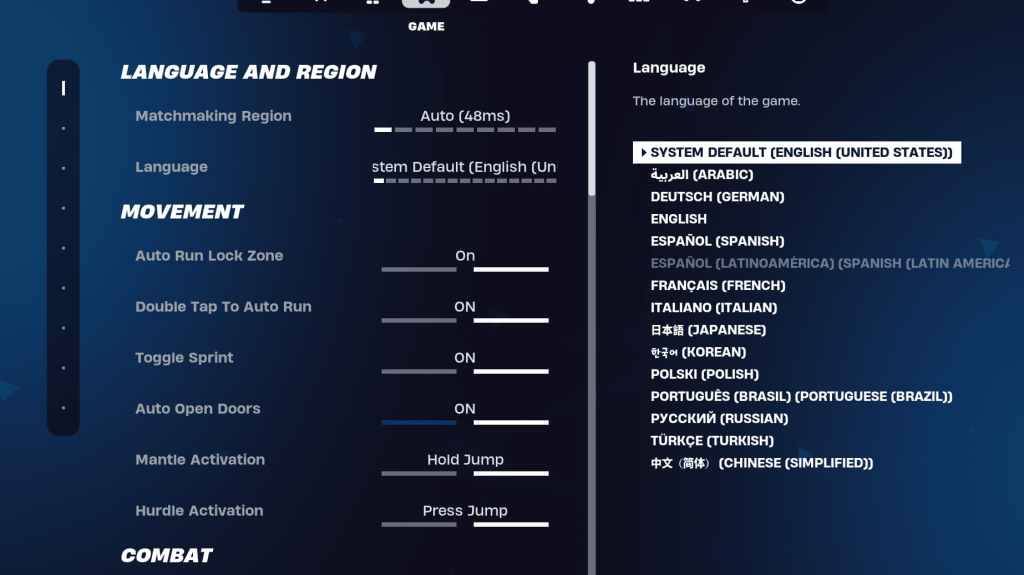
The Game settings section in Fortnite doesn't affect FPS but is crucial for gameplay mechanics like editing, building, and movement. Here are some key settings to consider:
Movement
- Auto Open Doors: On
- Double Tap to Auto Run: On (for controllers)
The rest can be left at default settings.
Combat
- Hold to Swap Pickup: On (allows swapping weapons from the ground by holding the Use key)
- Toggle Targeting: Personal preference (choose between Hold or Toggle to Scope)
- Auto Pickup Weapons: On
Building
- Reset Building Choice: Off
- Disable Pre-edit Option: Off
- Turbo Building: Off
- Auto-Confirm Edits: Personal preference (use Both if unsure)
- Simple Edit: Personal preference (easier for beginners)
- Tap to Simple Edit: On (only if Simple Edit is enabled)
These settings cover the essential adjustments in the Game tab, with the rest being quality-of-life options that don't impact gameplay or performance.
Fortnite Best Audio Settings
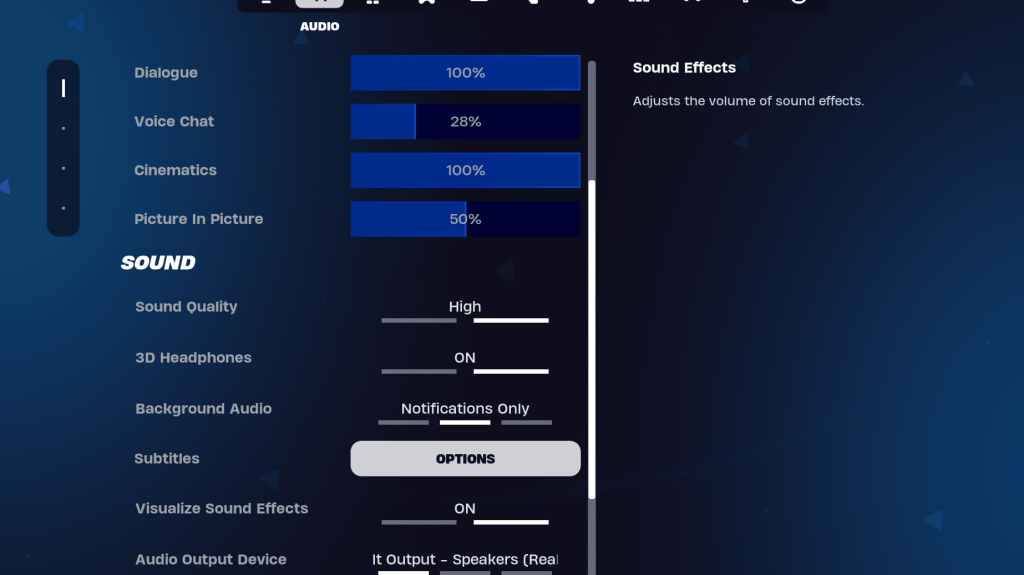
Audio plays a vital role in Fortnite, helping you detect enemy movements and other crucial sounds. The default audio settings are generally good, but you should enable:
- 3D Headphones: On for improved directional audio, though it may vary with different headphones.
- Visualize Sound Effects: On to get visual cues for sounds like footsteps or chests.
Related: How to Accept the EULA in Fortnite
Fortnite Best Keyboard and Mouse Settings
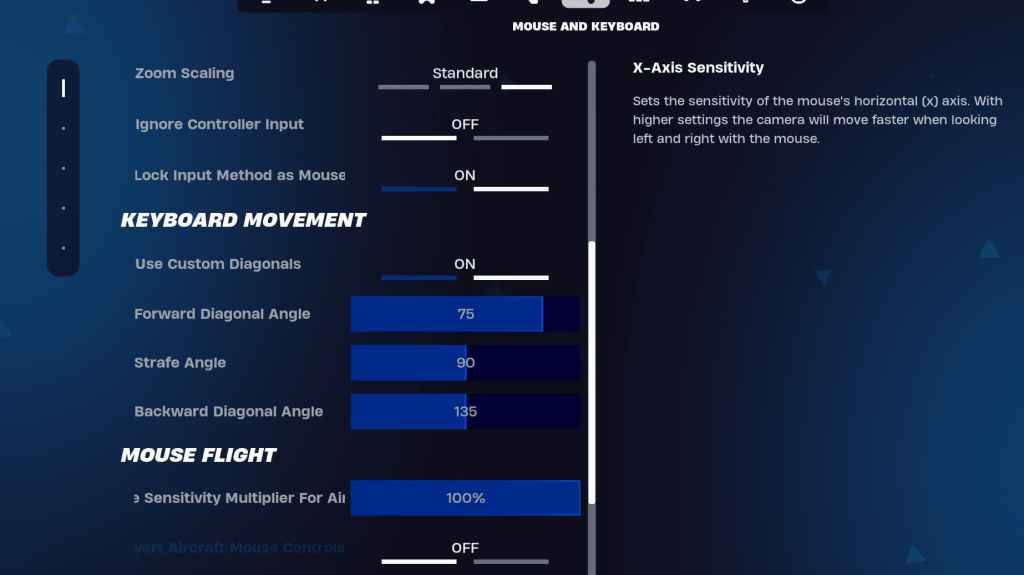
The Keyboard and Mouse settings are essential for fine-tuning your sensitivity and other gameplay controls. Here are the recommended settings:
- X/Y Sensitivity: Personal preference
- Targeting Sensitivity: 45-60%
- Scope Sensitivity: 45-60%
- Building/Editing Sensitivity: Personal preference
Keyboard Movement
- Use Custom Diagonals: On
- Forward Angle: 75-78
- Strafe Angle: 90
- Backward Angle: 135
For keybinds, start with the default settings and adjust according to your comfort. There's no one-size-fits-all solution; it's all about personal preference. You can refer to our guide on the best Fortnite keybinds for more detailed recommendations.
These settings should help you optimize Fortnite for the best performance and gameplay experience. If you're interested in playing Fortnite Ballistic, make sure to check out the specific settings for that mode as well.
Fortnite is available to play on various platforms, including the Meta Quest 2 and 3.