Managing Subtitles in Avowed: A Quick Guide
Subtitles are a fantastic accessibility feature, but not everyone's cup of tea. This guide shows you how to easily toggle subtitles on and off in Avowed.
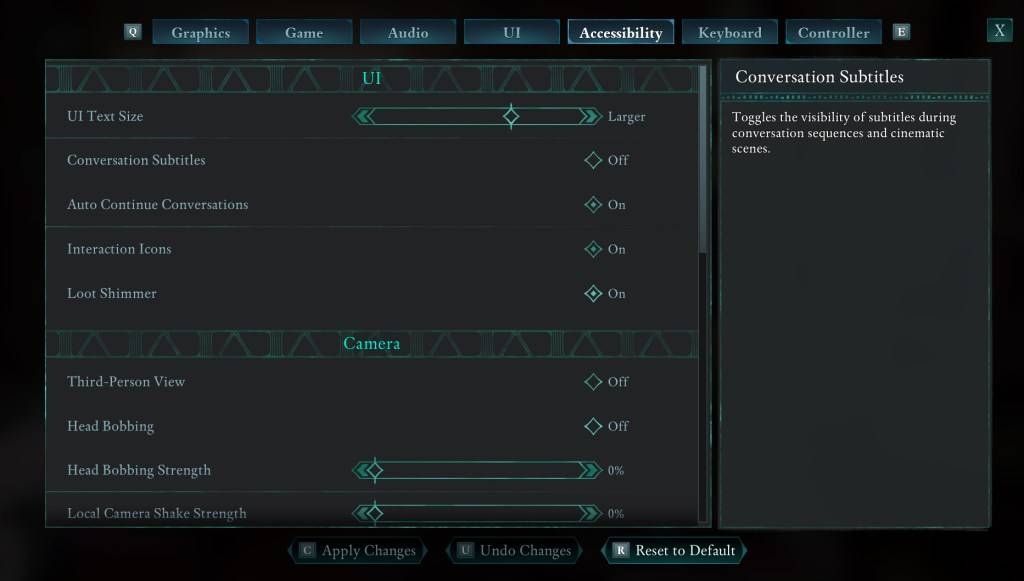
While Avowed presents initial subtitle options, you might accidentally select the wrong setting. Fortunately, there are two convenient locations to adjust subtitles:
Navigate to the "Settings" menu, then access either the "UI" or "Accessibility" tabs. Locate "Conversation Subtitles" and "Chatter Subtitles" and adjust them to your preference. The "Accessibility" tab offers the clearest and most straightforward method.
Why Some Players Disable Subtitles
While subtitles are essential for many (myself included!), some players find them distracting. Ultimately, the choice is personal; enable them if needed or preferred, disable them if you find them disruptive.
Avowed's Accessibility Features
Avowed offers a solid range of accessibility options, though perhaps not as extensive as some titles. You can customize subtitle settings, including size, background opacity, and display duration.
Beyond subtitles, options to mitigate motion sickness are available, allowing you to reduce camera shake and head bobbing. Further accessibility features include adjustable aim assist, toggleable crouch/sprint, and other enhancements promoting broader player inclusivity.
That's how to control subtitles in Avowed. Enjoy the game!
Avowed is currently available.