
Troubleshooting the "Can't Connect to Host" Error in Ready or Not
One of the most frustrating experiences in Ready or Not is the inability to connect to games. While developers are working on a permanent solution, the timeframe remains unclear. This guide provides solutions to resolve the persistent "Can't Connect to Host" error.
Causes of the "Can't Connect to Host" Error
This error typically indicates a problem connecting to the game servers. Several factors can contribute, including network issues, corrupted game files, version discrepancies, and interfering background applications. Pinpointing the exact cause can be challenging, but the following solutions often prove effective.
Solutions for the "Can't Connect to Host" Error
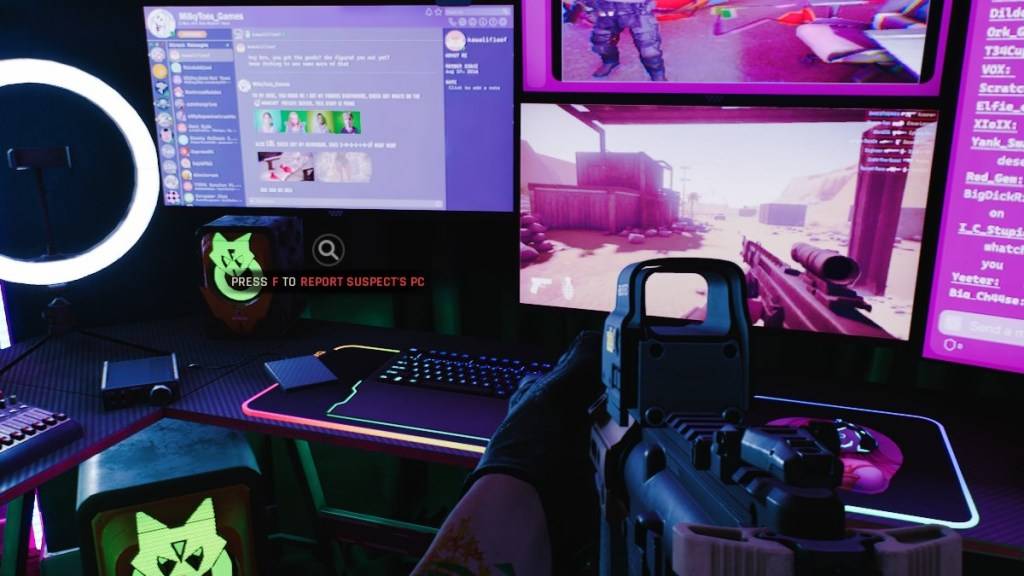
The "Can't Connect to Host" error, while disruptive, is usually manageable. Try these steps:
-
Restart the Game: A simple game restart often resolves the issue, especially if it's a first-time occurrence. Consider restarting Steam (or your game launcher) as well.
-
Verify Game Files: Corrupted or missing game files are a common culprit. Use your game launcher's file verification tool (e.g., Steam's "Verify Integrity of Game Files" option found in the game's properties). This process checks and repairs any damaged files.
-
Add Ready or Not to Firewall Exceptions: Although rare, Windows Firewall can sometimes interfere. Add Ready or Not to your firewall's allowed applications list. The exact steps vary depending on your firewall, but generally involve navigating to your firewall settings and adding the game's executable file.
-
Disable VPNs and Unnecessary Background Apps: VPNs, while sometimes beneficial for reducing ping, can occasionally cause connectivity problems. Temporarily disable your VPN while playing. Similarly, close any unnecessary background applications that might be competing for resources or interfering with network connections.
-
Change DirectX Mode (Launch Options): While less common, launch options might contribute to the error. Experiment with changing your DirectX mode in the game's launch options if other solutions fail.
-
Reinstall the Game: As a last resort, perform a clean reinstall. Uninstall the game through your launcher, then manually delete any remaining game folders and files, including those in your Local AppData directory (%localappdata% in Windows).
The "Can't Connect to Host" error is frustrating, but these steps should help resolve it. If the problem persists, consider contacting Ready or Not's support for further assistance.
Ready or Not is currently available on PC.