Quick Links
Call of Duty: Black Ops 6 stands as the pinnacle of the franchise, captivating players with its exhilarating multiplayer game modes that embody the high-octane action the series is renowned for. This latest installment offers unparalleled customization, allowing players to tailor their gameplay experience with a variety of settings adjustments. Among these, the ability to disable killcams has been a welcomed addition for many, eliminating the need to skip them after each death.
Returning players might be surprised by the introduction of more vibrant character skins and elaborate kill effects brought by seasonal updates. If these elements prove to be a distraction, this guide will walk you through the steps to turn off both killcams and the flashy kill effects in Call of Duty: Black Ops 6.
How to Turn Off Killcams
Killcams in Call of Duty provide a view from the killer's perspective post-mortem, which can be useful for identifying sniper positions or understanding enemy tactics. Although you can press the Square/X button to skip these, you still face a delay before respawning. If you're tired of this process, you can opt to disable killcams entirely. Here's how:
- Navigate to the multiplayer menu in Call of Duty: Black Ops 6.
- Press the Start/Options/Menu button to access the Settings.
- Go to the Interface settings page.
- Find the option to toggle Skip Killcam and set it to off.
This way, you no longer have to worry about skipping killcams. If curiosity strikes and you want to review a death, simply hold the Square/X button to view the killcam as usual.
How to Turn Off Kill Effects
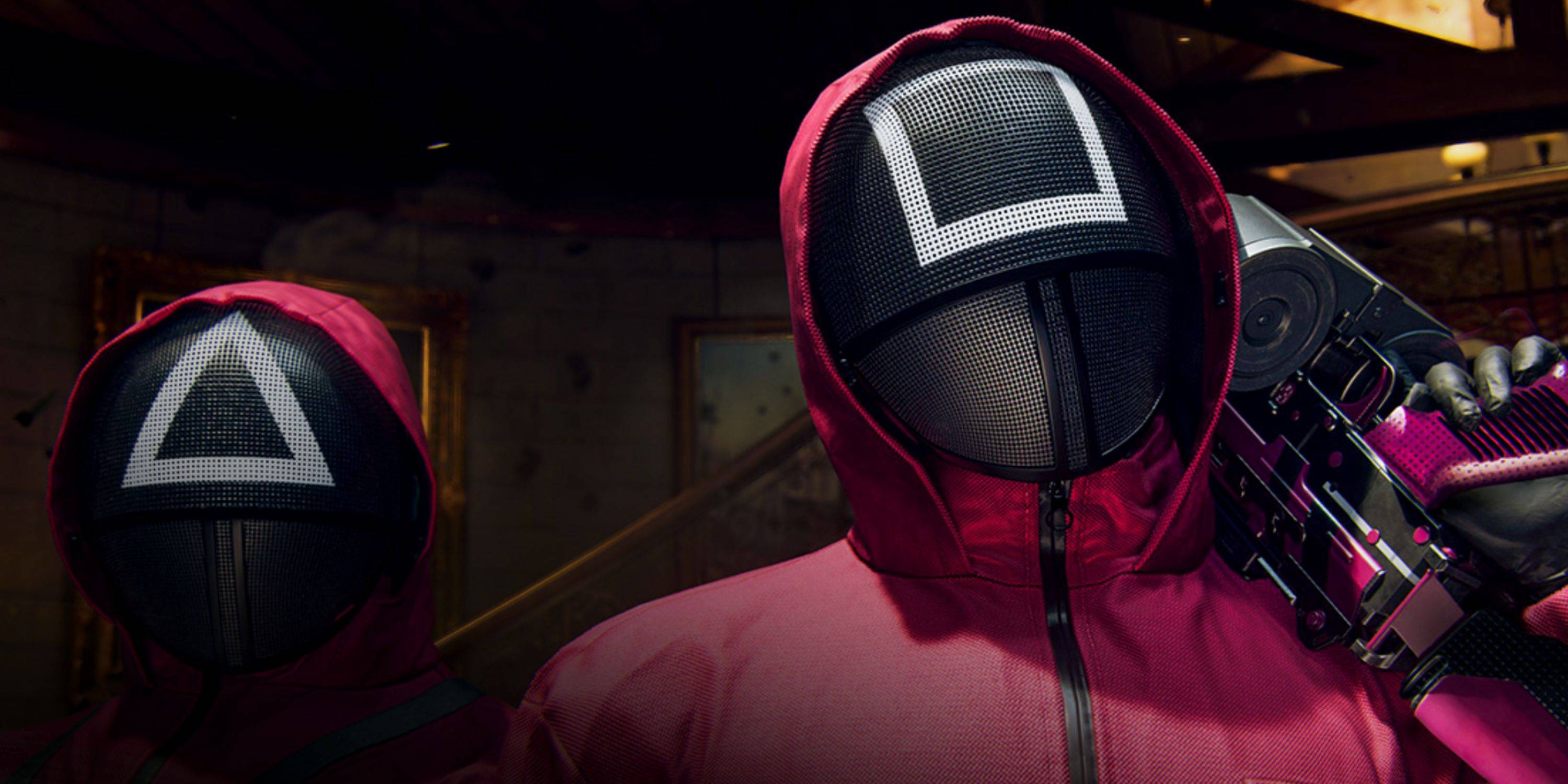
Call of Duty: Black Ops 6 introduces a plethora of weapon skins obtainable through the battle pass. These skins not only change the visual appearance of the weapons but also add distinctive death animations, such as being killed by colorful lasers or other whimsical projectiles. While these effects can enhance the visual flair of the game, they may not appeal to all, particularly long-time fans who prefer a more traditional experience.
To disable these animations, follow these steps:
- From the multiplayer menu, press Start/Options/Menu to open the Settings.
- Navigate to the Account & Network settings at the bottom of the list.
- Under the content filter settings, toggle off Dismemberment & Gore Effects to eliminate these battle pass kill animations.