Here's a clear, concise summary and guide to help you use DroidCam (your Android phone as a webcam) on your computer — whether via Wi-Fi or USB, with tips and setup advice:
📱 Turn Your Android Phone into a Webcam with DroidCam
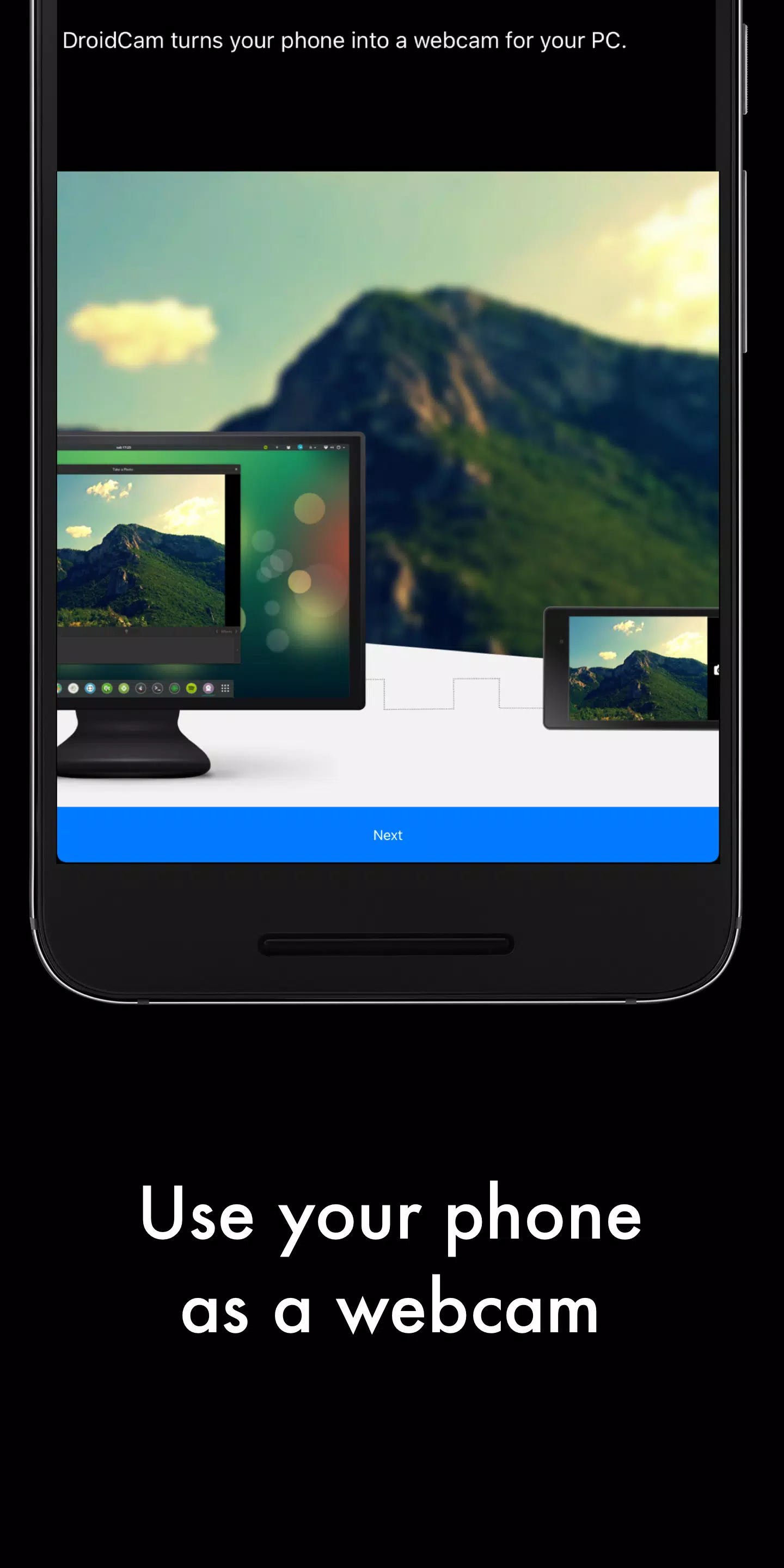
DroidCam lets you use your smartphone as a high-quality webcam for video calls (Zoom, Teams, Google Meet), streaming, or recording — all for free, with no watermarks.
🔧 How to Set It Up (Step-by-Step)
✅ 1. Download the App & PC Client
- Open your computer’s browser and go to:
🔗 https://www.dev47apps.com - Download the DroidCam PC client for:
- Windows (32-bit or 64-bit)
- Linux (supports most distros)
💡 Tip: Make sure your computer and phone are on the same Wi-Fi network (for Wi-Fi mode).
📲 2. Install DroidCam on Your Android Phone
- Open the Google Play Store on your phone.
- Search for "DroidCam" by Dev47Apps.
- Install the app.
🔐 No need to root your phone! Works on most Android devices (Android 5.0+).
⚙️ 3. Connect Your Phone to Your Computer
📶 Option A: Wi-Fi Connection (Easiest)
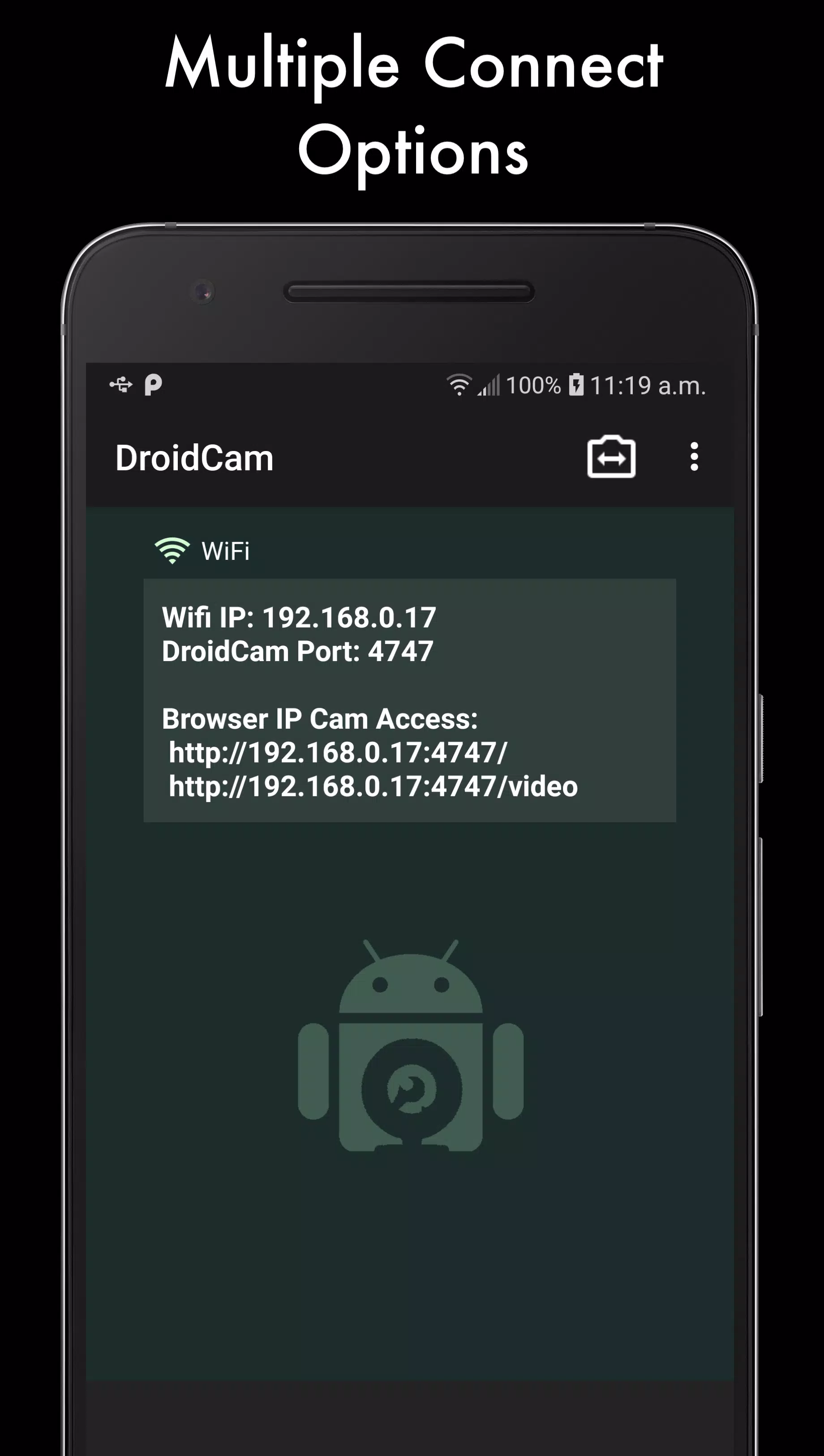
- Open DroidCam on your phone.
- Tap "Start".
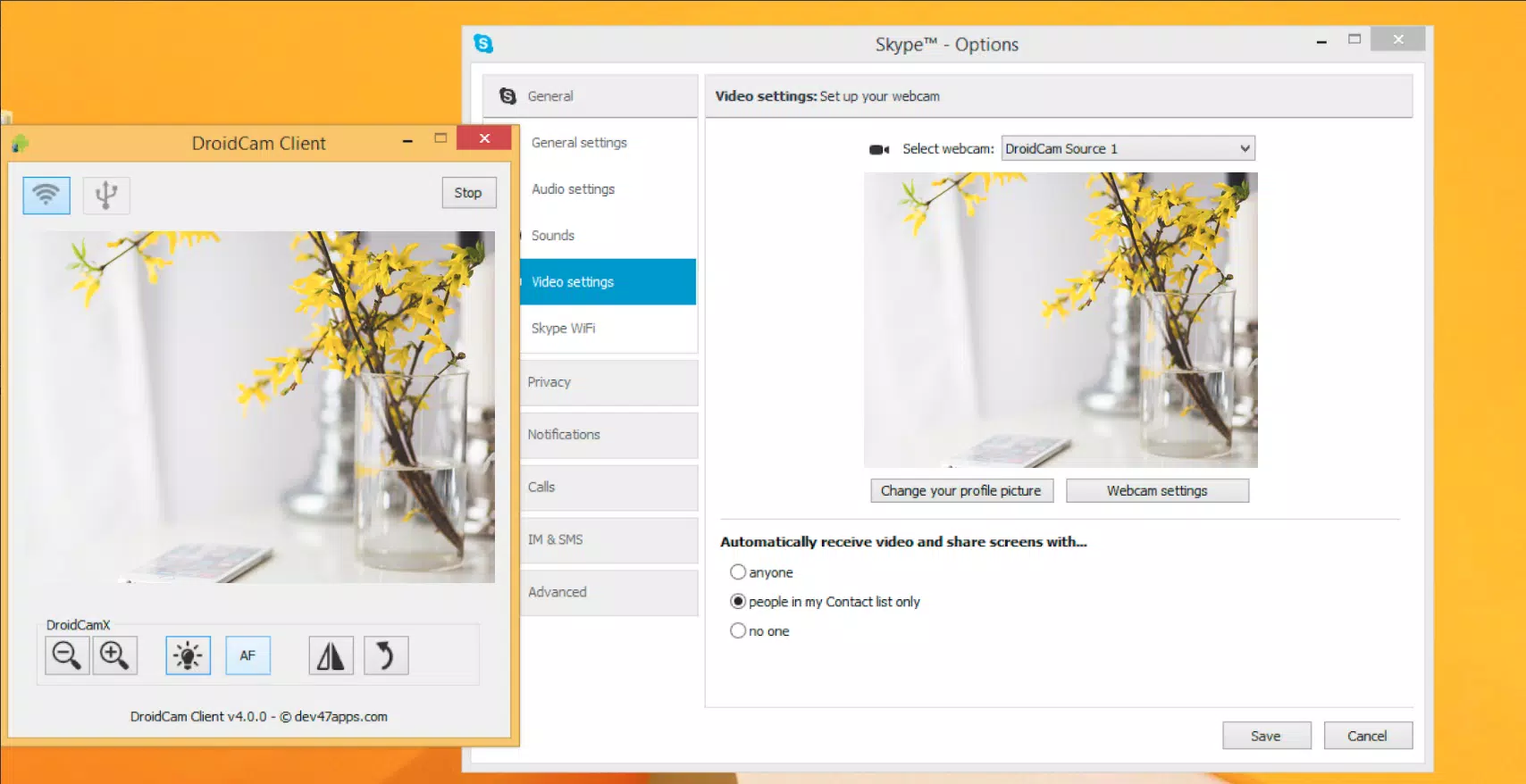
- On your computer, open the DroidCam PC client.
- Select "Wi-Fi" mode.
- Enter the IP address shown on your phone (e.g.,
192.168.1.100) — or let the client auto-detect it. - Click Connect.
✅ Works seamlessly over Wi-Fi. No cables needed.
🔌 Option B: USB Connection (Better Quality & Privacy)
- Connect your phone to your computer using a USB cable.
- On your phone, allow USB debugging (if prompted — go to
Settings > Developer Options). - In DroidCam, tap "USB" mode.
- On your PC, open the DroidCam client and select "USB".
- Click Connect.
✅ USB gives you lower latency, better video quality, and no Wi-Fi interference.
⚠️ Some phones may not auto-recognize — if so, check "USB Debugging" or use a different cable.
🎤 Audio & Video Settings
- DroidCam uses your phone’s microphone and camera.
- Built-in noise cancellation helps reduce background noise.
- You can:
- Use your phone’s camera (front or back).
- Switch camera modes (e.g., front-facing selfie mode).
- Enable auto-focus, exposure, and white balance.
🔄 While Using DroidCam
- You can use other apps on your phone (like messaging or music) while DroidCam runs in the background.
- The app continues working even with the screen off (saves battery).
- IP Webcam Mode: Access your camera feed in any browser via
http://[your-phone-ip]:8080(great for remote viewing).
💰 Upgrade to DroidCamX Pro (Optional)
For enhanced features, consider upgrading:
| Feature | DroidCamX Pro |
|---|---|
| 🚫 No ads | ✅ |
| 🔒 USB-Only Mode (no Wi-Fi, more secure) | ✅ |
| 📞 Auto-mute phone during calls | ✅ |
| 📸 720p / 1080p HD video | ✅ |
| 🎞 Smooth FPS (stable 30fps/60fps) | ✅ |
| 🖱️ Advanced controls (flip, mirror, brightness, contrast) | ✅ |
💬 DroidCamX Pro is a one-time purchase — no subscriptions.
✅ Why Use DroidCam?
- ✅ Free and no limits
- ✅ No need to buy a new webcam
- ✅ Works with Zoom, Teams, OBS, Skype, Discord, and more
- ✅ Great for remote work, streaming, or recording
- ✅ Low cost, high quality
📌 Troubleshooting Tips
- Not connecting? Restart both phone and PC, and ensure firewall isn’t blocking the app.
- Audio not working? Check mic permissions on your phone and in the PC client.
- Blurry video? Try switching to back camera or enable HD Mode (Pro version).
🎯 Final Thoughts
DroidCam is a powerful, free alternative to traditional webcams. Whether you're a remote worker, streamer, student, or content creator, it’s a game-changer — all from your existing Android phone.
👉 Start now:
🔗 https://www.dev47apps.com
Let me know if you'd like:
- A PDF guide to download
- Help setting up with OBS Studio
- Tips for best video quality
- Or a USB setup video tutorial link
Happy streaming! 🎥📱💻